WhatsApp campaigns
How to connect WhatsApp to Verse with a QR code, send a beat or demo to a list of numbers with safe pauses, and answer artists right from the Chats section.
- Updated
- October 17, 2026
- Reading time
- 5 min read
- Platforms
- macOSWindows
On this page
After this guide, your WhatsApp will be connected to Verse. You will send your first campaign to a list of numbers. It will have the text, files and pauses you choose. You can read and answer artists' replies right in Verse.
What you need first:
- a computer with Verse (Mac or Windows);
- a phone with WhatsApp. Messages will go out from its number;
- numbers in international format: +1…, +44…, +998…
Connect WhatsApp
Verse opens WhatsApp Web in a separate VerseAnty window. VerseAnty is the protected browser built into Verse. You sign in only once. After that, Verse connects by itself every time.
- Open WhatsApp in Verse. In the left menu, choose Connection.
- Click Connect WhatsApp. A window with a QR code opens. The first time, VerseAnty can take a few minutes to download.
- On your phone, open WhatsApp → Settings → Linked devices → Link a device.
- Point the phone camera at the QR code. The code updates by itself, so you do not need to hurry.
- The status changes to "WhatsApp connected". Your number appears next to it.
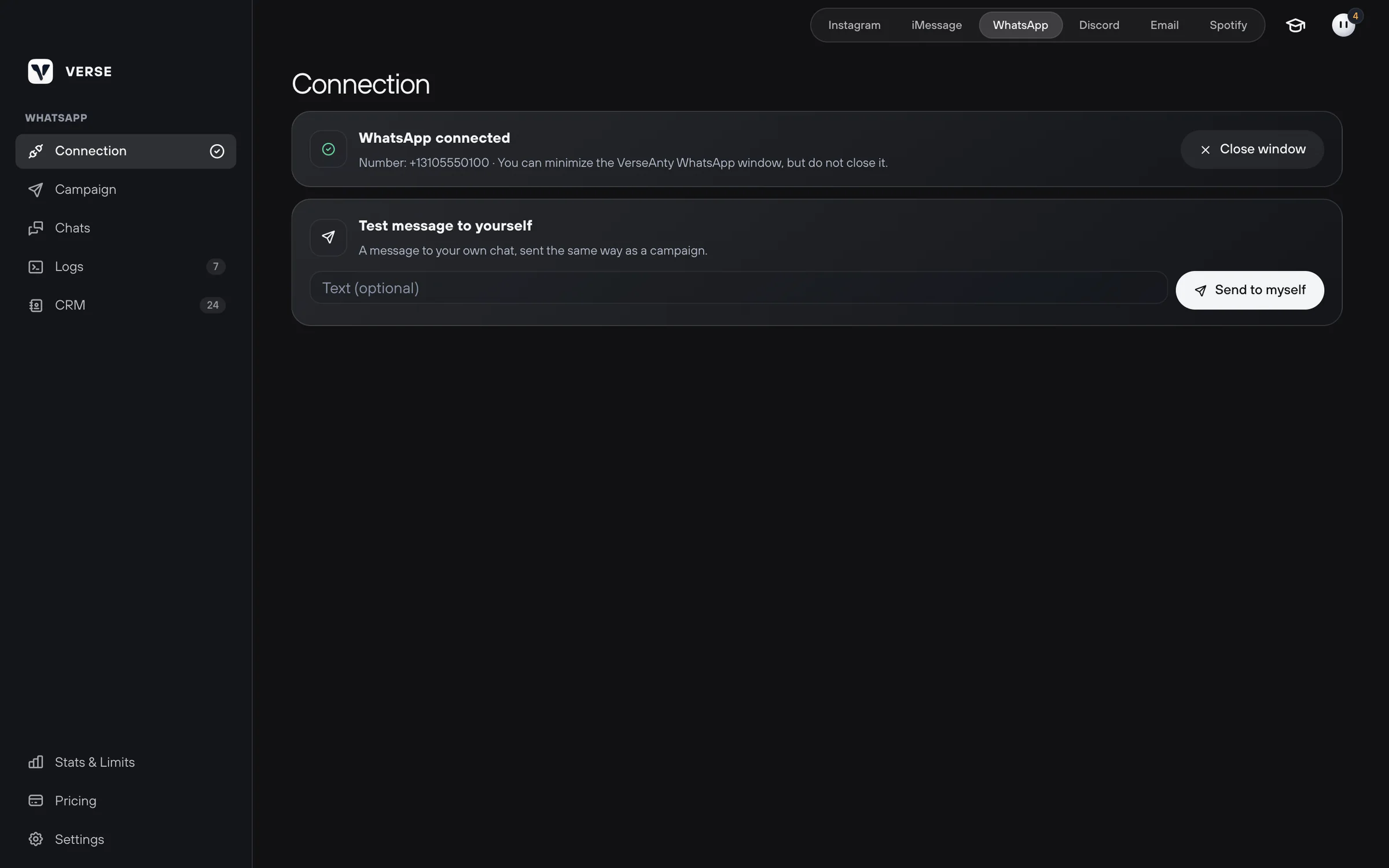
You can minimize the VerseAnty WhatsApp window, but do not close it. Verse sends messages through it. Close window disconnects WhatsApp. But you stay signed in, and you can connect again with one click.
Is WhatsApp Web open in another browser or window? Then Verse shows "WhatsApp is open in another window". Click Use here. WhatsApp moves to Verse, and the other window disconnects.
Check that sending works
- In Test message to yourself, type any text.
- Click Send to myself.
The message comes to your chat with yourself. It is sent the same way as a campaign. If it arrives, you are ready.
Create a campaign
Open Campaign. The steps on the screen go from top to bottom.
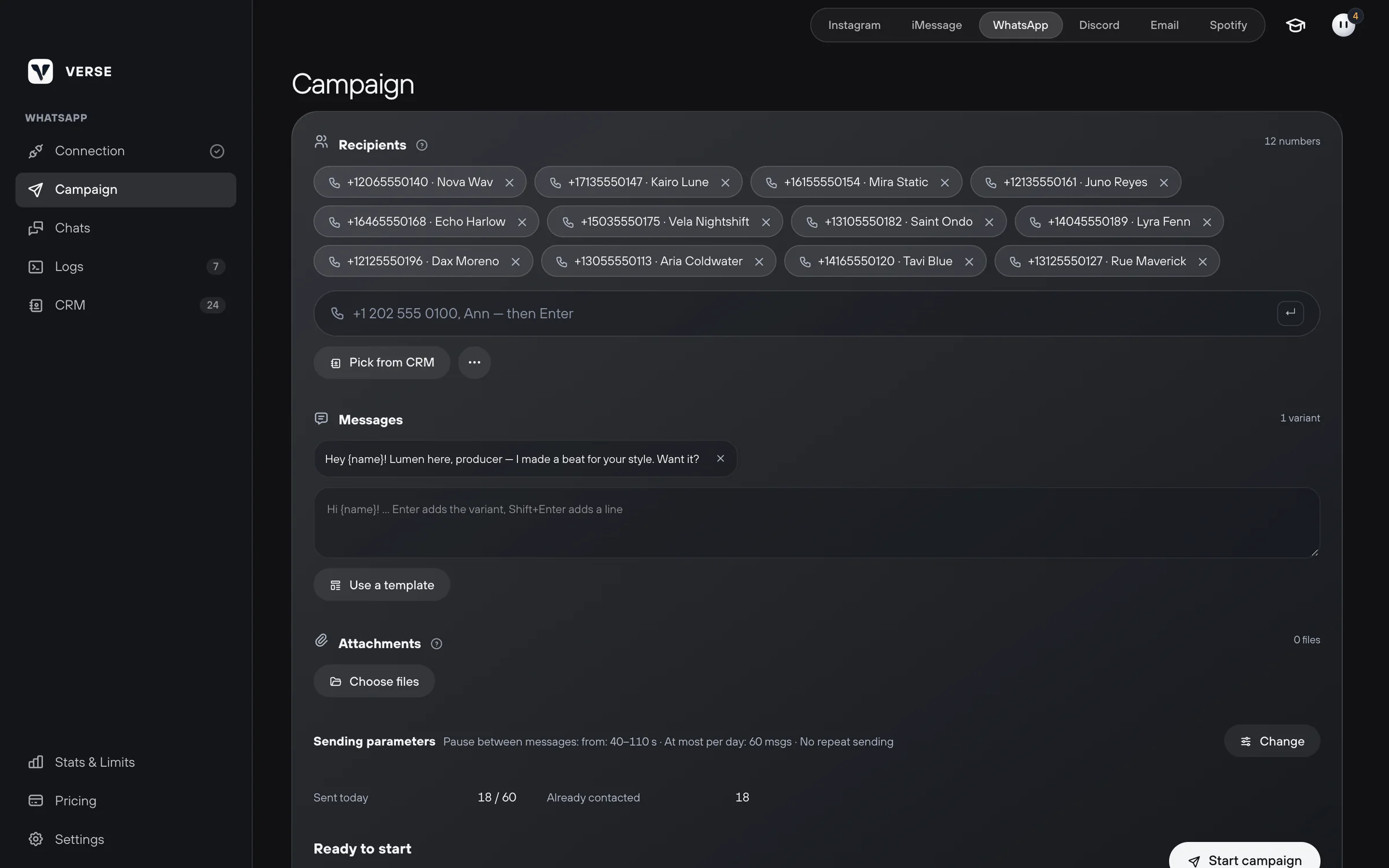
- In Recipients, type a number and press Enter. Put one number per line.
- To use a person's name, add it after a comma:
+1 202 555 0100, Ann. - You can take people from your contact list (CRM). Click Pick from CRM.
- In Messages, type a message and press Enter. Each person gets one random version.
- To add the name, put
{name}in the text. Verse takes the name from your list of people. For a new line, press Shift + Enter. - To use a saved text, click Use a template.
- In Attachments, click Choose files or drag files there. For example, a beat, a demo or cover art. You can add up to 10 files, up to 100 MB each. The files arrive first, then the text.
Choose the sending speed
| Setting | What it does |
|---|---|
| Pause between messages: from … to | The pause between numbers. Verse picks it at random between these numbers. The normal setting is 60–180 seconds |
| At most per day | Your own limit for one day. The normal setting is 40 messages |
| Message people who were already contacted | Usually off. This way Verse never messages the same number twice |
The tip in the app says a new number should send 20–40 messages a day. Pauses should be one minute or more. The slower you send, the safer your number is.
Start and watch the statuses
- Click Start campaign. If WhatsApp is not connected, Verse offers to connect it first.
- While it works, you see who Verse is messaging now. You also see how many seconds are left until the next message, and how many are sent out of the total.
- You can Pause, Resume or Stop the campaign.
Each number in the list has its own status:
| Status | What it means |
|---|---|
| Sent, Delivered, Read | WhatsApp accepted the message. Then come the delivery and read ticks |
| Not confirmed | No delivery tick came. Look at the WhatsApp window |
| This number has no WhatsApp | This number does not use WhatsApp |
| Not sent | The message did not go out. The text stayed in the text field |
| Unknown | It is not clear if the message went out. Verse does not send it again |
Progress and errors go to Logs, the record of every action. There is a Copy button there. Use it when you need to send the log to support.
Reply from Chats
Chats shows your personal WhatsApp chats.
- Pick a chat on the left and reply in the field at the bottom.
- Click an avatar to add the person to the CRM.
If a campaign is running, your reply goes out after Verse finishes with the current number.
Replies from Chats do not count toward your plan limit.
Limits
The limit counts numbers that Verse messages for the first time. A number is counted right before the first message to it.
| Plan | WhatsApp numbers per month |
|---|---|
| Trial | 20 |
| Individual | 50 |
| Basic | 150 |
| Premium | 1,200 |
| VIP | 1,800 |
Every plan has a limit of 60 new numbers a day. It works even if At most per day is set higher. When you reach the limit, the campaign pauses. Stats & Limits shows what is left.
Read next
- Shared contact list (CRM)How to keep all your artists in one Verse table: where you talk to them, what stage each one is at, what to do next, what they paid, plus import and export.
- Message templatesHow to save ready texts in the template library, put them into folders and add them to your Instagram, iMessage, Discord and WhatsApp campaigns in one click.
- Safe sending settingsPlan limits, pauses between messages, warm-up, proxies, how much to send at the start, and what to do if Instagram limits your account after a campaign.
- Plans and limitsHow Verse plans differ: price, number of Instagram accounts, how many messages you can send per day and per month in each channel, and which plan to choose.
Something here doesn't match what you see in the app? Tell us and we'll fix the article.
Support