Message templates
How to save ready texts in the template library, put them into folders and add them to your Instagram, iMessage, Discord and WhatsApp campaigns in one click.
- Updated
- October 17, 2026
- Reading time
- 3 min read
- Platforms
- macOSWindows
On this page
A template is a ready message text that you saved in Verse. You do not need to copy texts from your notes anymore. You save a good message once. Then you add it to any campaign with one click.
The template library is the same for Instagram, iMessage, Discord and WhatsApp. It is on every plan.
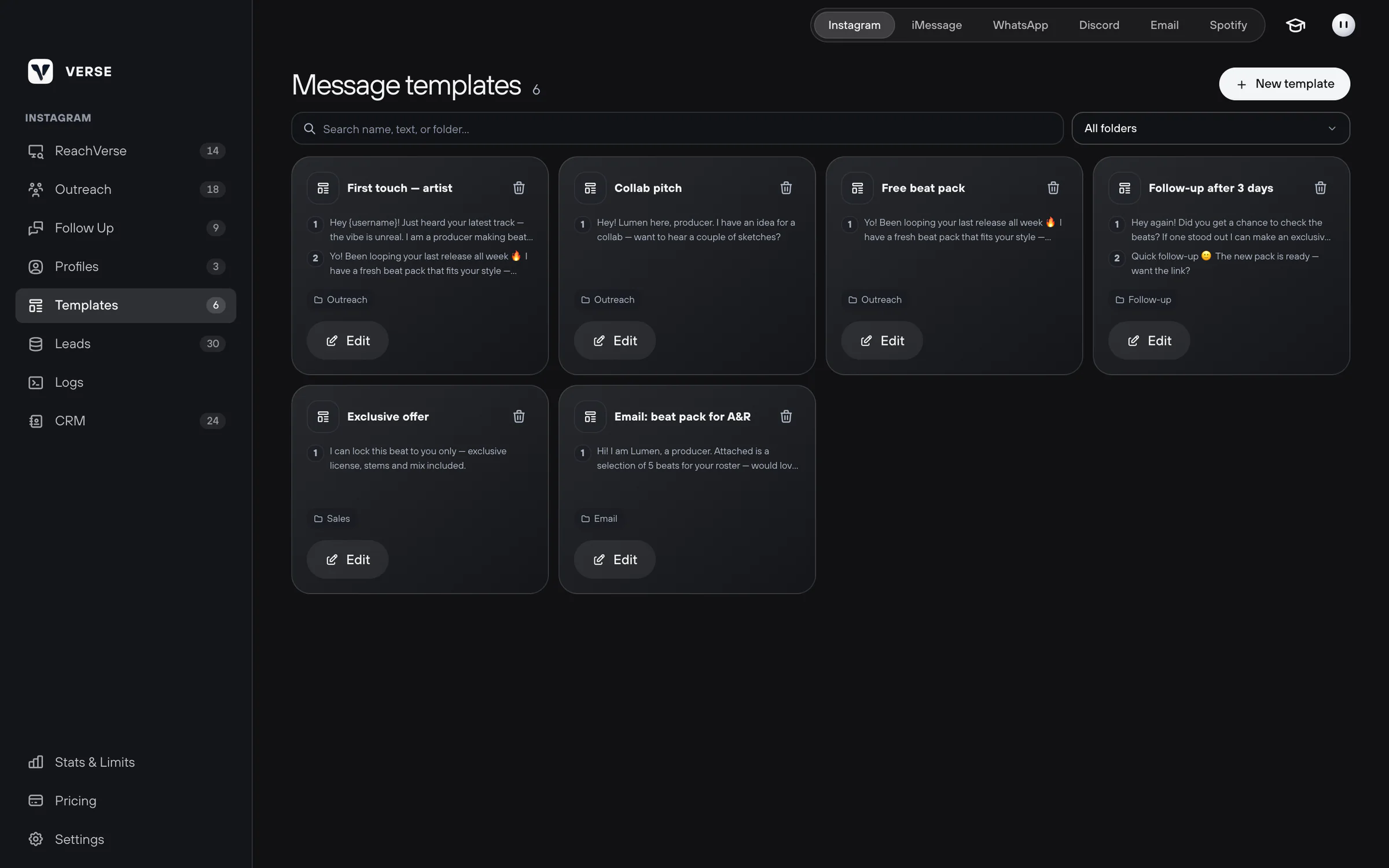
Create a template
- In the left menu of Instagram, iMessage or Discord, select Templates. They all open the same library.
- Click New template.
- Fill in Name. For example, "First message, trap".
- In Folder, type a folder name. For example, "Instagram EN". If there is no such folder, Verse creates it.
- Write the text in Template messages.
- To add one more message, click Add message.
- Click Save.
You can search by name, text or folder. The All folders filter switches between folders.
Add a template to a campaign
- Open the campaign you need. For example, Outreach on Instagram, where you send the first message to artists.
- Click Use a template and pick the template.
- Check the texts. A template replaces all messages that were already in the field.
How template messages are sent
A template can have several messages. What happens to them depends on where you add the template.
| Where it is used | What the person gets |
|---|---|
| Instagram: Outreach and Follow Up | Each message in the template is a separate version. The person gets one version, picked at random |
| iMessage, Outreach mode | One random version |
| iMessage, Follow Up mode | All messages in order, from top to bottom |
| One random version |
Follow Up sends a second message to people who did not reply.
So for Instagram, put a few versions of the same offer into one template. For iMessage, where messages go one after another, put them in the right order.
Variables
A variable is a word in curly brackets. Verse replaces it with the person's details, like their username. Each channel has its own variables:
| Channel | Variable |
|---|---|
{username}: the person's username | |
| iMessage | {Name}: name; {Phone}: phone number or email |
{name}: the name from the list of people | |
{name}: the name from the line with the person |
Use the variable of the channel where the template goes. For example, {username} works only on Instagram. To avoid mistakes, put templates into folders named after the channel.
Templates in the CRM and email
The CRM is your contact list, one table with every artist. Campaigns from the CRM and email campaigns have their own templates. They are kept apart from the library.
How to save a template in the CRM:
- Open the New mailing window.
- Type a template name in the field under the messages.
- Click Save.
The template remembers the channel and the mode: One random or Sequential. It also remembers the messages, the account you send from, and attachments. For email, it also remembers the subject. Next time, pick the template from the Use template list.
In an email campaign, you save a template with Save template.
See CRM campaigns. How to write the texts: How to write first messages to artists.
Read next
- How to write first messages to artistsSimple tips for producers: what to learn about an artist first, how to make one clear offer, write a few versions, send links and when to send a reminder.
- Your first Instagram campaignHow to add artists to your list, write a few versions of your message, set the pause between messages and start your first Instagram DM campaign in Verse.
- How to message artists from your contact list (CRM)How to send a message to the artists you picked, right from your contact list: in one channel or in each artist's main channel, with a check of who gets it.
Something here doesn't match what you see in the app? Tell us and we'll fix the article.
Support