Install Verse and start the free trial
How to download Verse for Mac or Windows, open it for the first time, get a free 7-day trial key without a card and start the app with your key.
- Updated
- October 17, 2026
- Reading time
- 5 min read
- Platforms
- macOSWindows
On this page
After this guide, Verse will be installed on your computer. You will start it with a trial key or a paid key. It takes a few minutes.
What you need:
- a Mac with Apple Silicon or Intel, or a PC with Windows 10 or 11 (64-bit);
- a license key, or five minutes to get a trial key. The trial lasts 7 days. You do not need a card.
Download the installer
Open the Download Verse page. Pick the file for your computer:
| Computer | What to download |
|---|---|
| Mac with Apple Silicon (M1 or newer) | Download for macOS · Apple Silicon, file Verse-<version>-arm64.dmg |
| Mac with Intel | Download for macOS · Intel, file Verse-<version>-x64.dmg |
| Windows 10 or 11, 64-bit | Download for Windows, file Verse-Setup-<version>.exe |
Not sure which Mac you have? Open the Apple menu → About This Mac. If the Chip line says Apple M…, you have Apple Silicon. If the Processor line says Intel, you have Intel.
Install Verse on a Mac
- Open the downloaded
.dmgfile. - Drag the Verse icon into the Applications folder.
- Open Verse from Applications or Launchpad.
Verse does not have an Apple Developer ID. This is a special mark from Apple for apps. So the first time, your Mac may show a warning and not open Verse. Here is what to do:
- Close the warning.
- Open System Settings → Privacy & Security.
- Scroll down to the Security section.
- Click "Open Anyway" next to the message about Verse.
- Type your Mac password. After this, Verse will open normally.
On older versions of macOS there is a faster way. Right-click Verse in Applications and choose Open.
Install Verse on Windows
- Run the file
Verse-Setup-<version>.exe. - You may see "Windows protected your PC". Click "More info", then "Run anyway".
- Choose a folder for Verse, or keep the one Windows suggests.
- Click Install.
- Open Verse from the desktop shortcut or the Start menu.
Get a trial key
You can get a trial key on the website or in the app. You get the trial only once per account and once per computer.
On the website:
- Open the Pricing page and choose the Trial plan.
- Create a Verse account. You can use email (you will confirm the address) or Telegram.
- After you sign in, the site opens the download page and turns on the trial. You will see "Your 7-day trial is ready".
- Open Dashboard → License.
- Next to "License key", click Show and then Copy.
In the app: on the activation screen, click Get Trial Key (7 days). The Verse Telegram bot opens. It gets your computer's ID and sends the key to the chat.
The trial includes every channel, but with small limits. A limit is how much you can send or add:
- 1 Instagram profile;
- 10 direct messages a day and 30 for the whole trial;
- 50 emails;
- 20 contacts each in iMessage, WhatsApp and Discord.
The trial does not include campaigns from your contact list (CRM). You also cannot run several accounts at the same time or control Verse from Telegram. The full table is in Plans and limits.
Activate Verse
The first time you open Verse, it shows the Activate Bot screen. Here you enter your key.
- Paste the key into the
KEY-XXXX-XXXX-XXXXfield. - Click Verify & Start App.
- Wait for "License verified successfully!". Verse opens the Instagram screen.
Lower on this screen you see Your Hardware ID (HWID). This is the ID of your computer. Your key is linked to it. You need this ID if you get a key from the Telegram bot or move your license to another computer. See License, devices and moving.
To change the key later, go to Settings → Account → License and activation.
First steps
After activation, Verse opens the Learning center. It has short guides about the app. Each guide shows one screen and highlights its parts. A guide does not start or send anything.
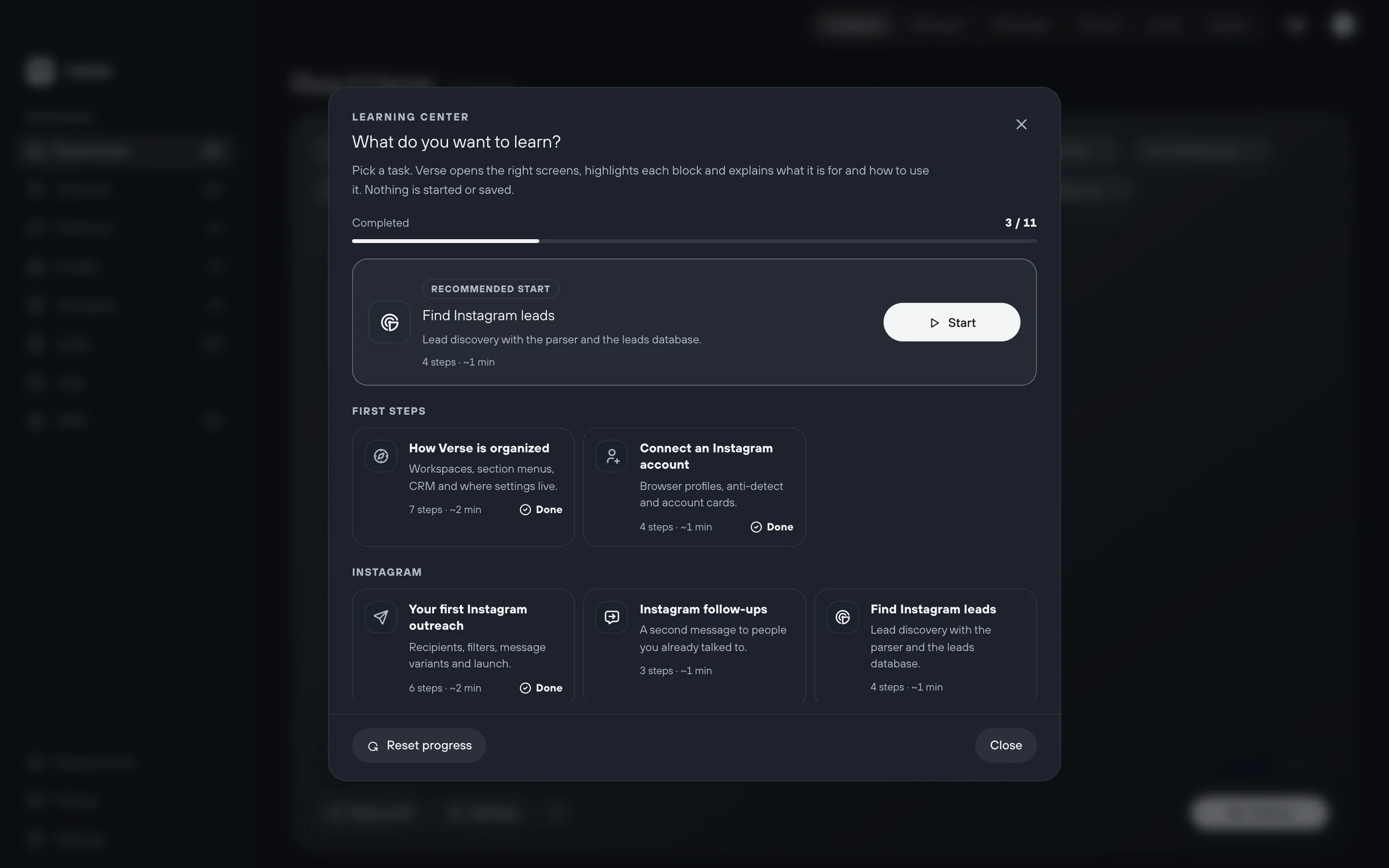
Where to start:
- take the "How Verse is organized" guide, or read How Verse is organized;
- connect your first Instagram account with Instagram profiles. The first time a profile starts, Verse downloads VerseAnty. This is the browser built into Verse. The download can take a few minutes;
- if you message artists by email, iMessage or Discord, start with their articles in the Channels section.
Read next
- How Verse is organizedWhere everything is in Verse: channel screens, section menus, your shared contact list, stats, pricing, settings, guides and the Assistant. A simple map.
- License, devices and movingWhere to get your Verse key, how to turn the app on, why a key works on one computer only, and how to move Verse to a new computer without losing your data.
- Plans and limitsHow Verse plans differ: price, number of Instagram accounts, how many messages you can send per day and per month in each channel, and which plan to choose.
- Instagram profiles: sign-in, proxies and warm-upHow to add an Instagram account to Verse: create a profile, add a proxy, sign in with a password or cookies, warm up for 48 hours, or use Dolphin Anty.
Something here doesn't match what you see in the app? Tell us and we'll fix the article.
Support