Shared contact list (CRM)
How to keep all your artists in one Verse table: where you talk to them, what stage each one is at, what to do next, what they paid, plus import and export.
- Updated
- October 17, 2026
- Reading time
- 6 min read
- Platforms
- macOSWindows
On this page
The Shared CRM is your contact list: one table with every artist and deal. It holds artists from Instagram, Discord, iMessage, WhatsApp and email. For each artist you see:
- what stage your work with them is at;
- when you last wrote to them;
- what to do next;
- how much they paid you.
The table, import and export are on every plan. Sending mass messages straight from the table is on Basic, Premium and VIP. Read more in CRM campaigns.
To open the table, click CRM in the menu on the left. The button is in every section except Spotify. All data is stored only on your computer.
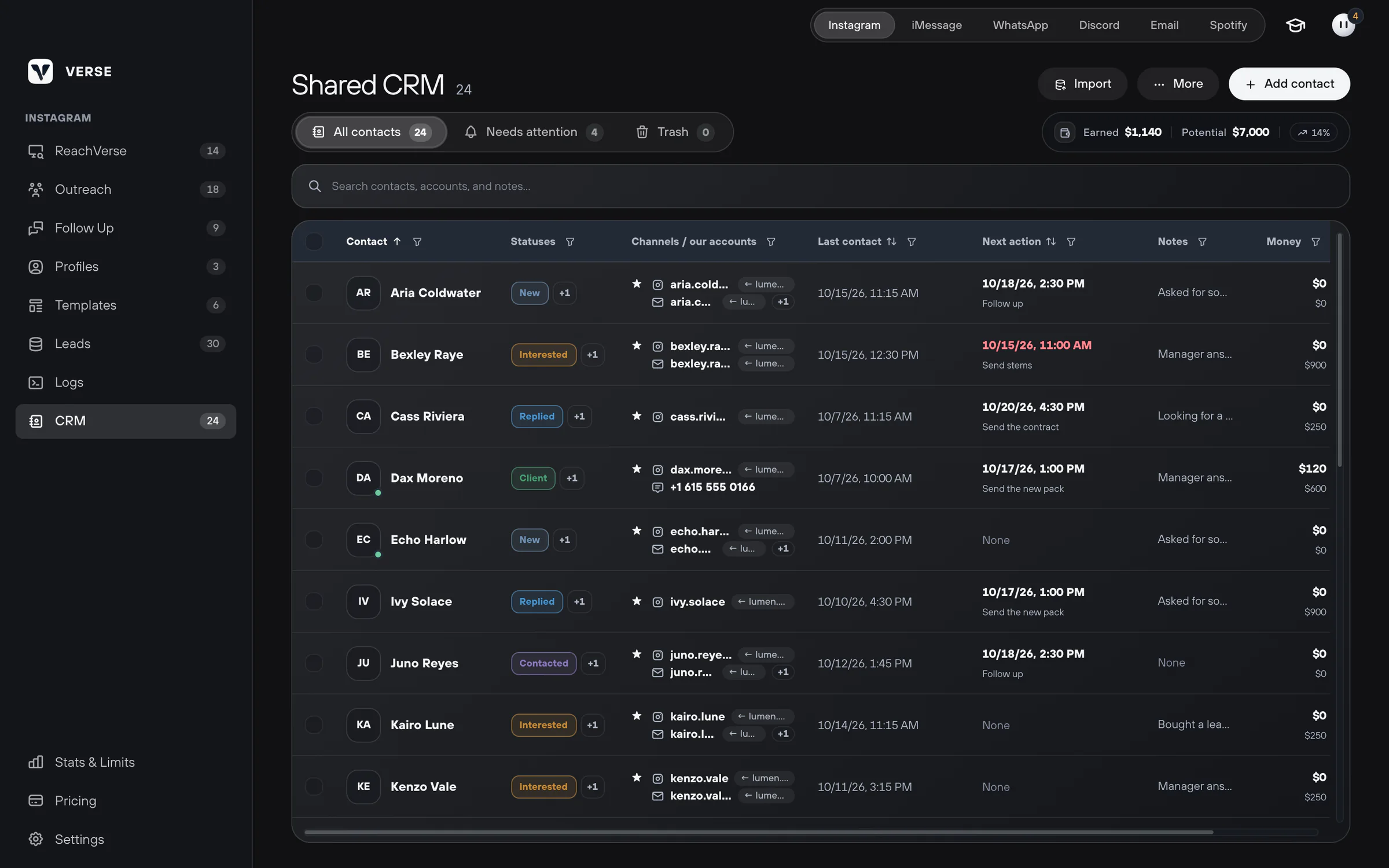
A contact and where you talk to them
One contact is one person. You can talk to them in several places at once. For example, Instagram, Discord, iMessage (phone or email), WhatsApp and email. In Verse, each of these places is called a channel.
Each channel has two fields:
- Contact account: the artist's address in this channel;
- Our account: your account that you write to them from.
You can make one channel the main one. Click Set as primary communication channel. Mass messages from the table go to this main channel, from the account you picked.
How to add a person by hand:
- Click Add contact.
- Fill in Name.
- Click Add channel.
- Enter the artist's address.
You need a name or at least one account.
What is in the table
| Column | What is in it |
|---|---|
| Contact | Name and main address |
| Statuses | Your labels. For example, the stage of your work with the artist |
| Channels / our accounts | All the artist's addresses and the accounts you write from |
| Last contact | When you last talked |
| Next action | What to do next and when |
| Notes | Any text. For example, what you agreed on and which beats they liked |
| Money | Earned: what the artist has already paid. Potential: what they may still pay |
Fields with a border can be changed right in the table. Click a row to open the contact card.

Above the table you see money totals: Earned, Potential and Conversion. Conversion shows how much of all deal money is already paid. For example: earned $1,140, potential $7,000 — it shows 14%. Fill in the money for your deals. Then you can see where your real sales come from.
Statuses
Statuses are colored labels. They show what is going on with an artist.
To set them up, open the More menu above the table and choose Configure statuses. Statuses are kept in groups. Verse starts with two groups:
- stages of work: new, contacted, replied, interested, client, declined;
- temperature, or how interested the artist is: cold, warm, hot.
Verse creates these names in Russian, even if your app is in English. Rename them or make your own. To add a group, click Add group.
- For each group, set Allowed status selection. Single status is good for a stage of work. Multiple statuses is good for genres, for example.
- To add a status, click Add status. Each status has a name and a color.
Example stages for selling beats: "New", "Contacted", "Replied", "Sent beats", "Bought". You choose the names.
Next action
In Next action, set a date, a time and what to do. For example, "Send the second pack".
When that time comes, the contact shows up in the Needs attention tab. Verse also shows a reminder. To set up reminders and quiet hours, read Assistant and reminders.
There are three tabs above the table: All contacts, Needs attention and Trash.
How to find the artists you need
- The search box looks through names, accounts and notes.
- Every column has a filter. You can pick values, empty cells or dates.
- For the next action there are quick filters: Today, Overdue and Scheduled.
- Sort by Last contact to find new contacts.
- Clear filters removes all filters at once.
How to change many contacts at once
Tick the rows you need. A bar with actions appears:
- New mailing: send a message to the ticked contacts;
- Status: add or remove a status;
- Set as primary channel: pick the main channel;
- in the ⋯ menu: Bind to account, Last contact, Next action, Notes, Money and Move to trash.
For notes and statuses you choose what to do. You can add to the old value, replace it or remove it.
Trash and "Do not contact"
To bring a contact back from Trash, click Restore. Delete removes it forever. You cannot undo this.
If someone asked you to stop writing, open their card. Turn on Do not contact. The contact gets a "Do not contact" badge. Mass messages from the table will skip them.
How to bring in contacts from other places
Click Import and choose where the contacts come from:
| From | What comes in |
|---|---|
| Import XLSX / CSV | Any Excel or CSV table. Verse works out what each column holds. You check this before the import. Verse reads CSV files as UTF-8, and if that fails, as Windows-1251. Columns it does not know go into notes |
| Parsing database | Artists you found in Leads, with labels, notes, source and addresses |
| iMessage CRM | Phones and emails from the old iMessage table, with labels and notes |
| macOS Contacts | People from the Contacts app on a Mac. macOS only |
If you import the same person again, Verse does not make a copy. It updates the contact you already have. Verse knows it is the same person by the channel and address.
How to download the table
Open the More menu above the table and choose Export XLSX / CSV. This is useful to share the list with a manager. You can also keep a copy before big changes.
Next, you can message the artists you picked: CRM campaigns.
Read next
- How to message artists from your contact list (CRM)How to send a message to the artists you picked, right from your contact list: in one channel or in each artist's main channel, with a check of who gets it.
- Assistant and remindersHow the Verse assistant helps you use the app and answer artists, what it can do for you, how many messages you can send it, and how reminders work.
- Find artists on Instagram (ReachVerse)How Verse finds artists on Instagram for you: where to look, who to save, how to skip what it already checked, how to export to Excel or move them to the CRM.
- Stats & LimitsHow to read the Stats & Limits screen: how many messages you sent today and this month, how many you can still send, and when the counters go back to zero.
Something here doesn't match what you see in the app? Tell us and we'll fix the article.
Support