How Verse is organized
Where everything is in Verse: channel screens, section menus, your shared contact list, stats, pricing, settings, guides and the Assistant. A simple map.
- Updated
- October 17, 2026
- Reading time
- 4 min read
- Platforms
- macOSWindows
After this article, you will know where to click for any task. It is a map of the app.
In Verse, each channel has its own screen: Instagram, iMessage, WhatsApp and others. We call this screen a workspace. Each workspace has its own sections and its own campaigns. Your contact list, stats, pricing and settings are shared by all workspaces.
Channels
You choose a channel with the switcher at the top of the window. You can switch to another channel while a campaign is running. The campaign will not stop.
| Workspace | What you can do here | Sections |
|---|---|---|
| Find artists, send DMs, send reminders to people who did not reply | ReachVerse, Outreach, Follow Up, Profiles, Templates, Leads, Logs | |
| iMessage | Message phone numbers and Apple IDs from a Mac or iPhone | Campaigns, Templates, Chats (macOS only), Logs |
| Message people through WhatsApp Web, on Mac and Windows | Connection, Campaign, Chats, Logs | |
| Discord | Post messages to server channels by link | Campaigns, Profiles, Templates, Logs |
| Send emails and beat packs through Gmail or your own email server (SMTP) | Campaigns, Logs | |
| Spotify | Find artists and their Instagram. Verse does not send messages on Spotify | Artist discovery, Artist library, My Spotify, Logs |
What the Instagram section names mean:
- ReachVerse: find artists;
- Outreach: send the first message to artists;
- Follow Up: send a second message to people who did not reply;
- Leads: the artists you found;
- Logs: a record of what Verse did and when.
There is no WhatsApp workspace on Windows. The number next to a section in the menu shows how many records it has.
Left menu
The top of the menu changes when you pick another channel. Below the channel sections is the CRM button. You see it everywhere except Spotify.
CRM is your shared contact list. It is one table with every artist from Instagram, iMessage, WhatsApp, Discord and email.
The bottom of the menu always has three buttons:
- Stats & Limits: how much you used today and this month in each channel. It also shows when daily limits start again from zero. See Stats & Limits;
- Pricing: what your plan includes and how other plans are different. The buttons on the cards open the Telegram bot for payment;
- Settings: language, theme, license, background mode, connections and backup.
Above the menu, under the logo, you see the Verse version number. Tell it to support if something goes wrong.
Top bar
To the right of the channel switcher there are two buttons:
- the graduation cap icon is Guides. It opens the Learning center with short step-by-step guides. In Discord or Spotify, Verse first suggests the guide for that channel;
- the mascot is the Assistant. It opens a panel on the right. The panel has two modes: Helper and Deals.
Helper answers questions about Verse, logs and limits. Deals helps you with a conversation with an artist. The number on the icon shows how many tasks in your contact list are planned for today. See Assistant and reminders.
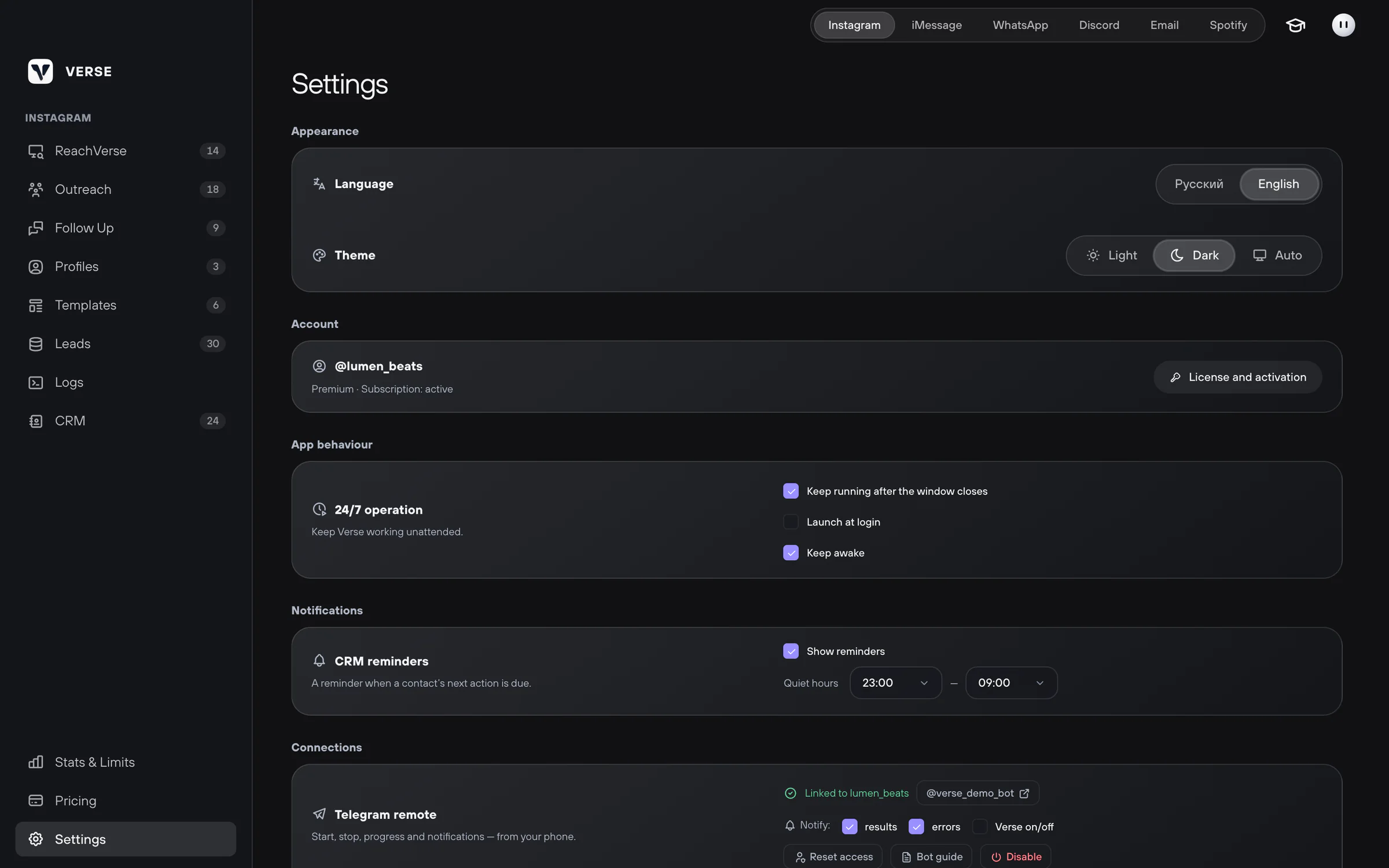
Settings
The Settings screen has these groups:
| Group | What is there |
|---|---|
| Appearance | Language: Russian or English. Theme: Light, Dark or Auto (same as your system) |
| Account | Plan, subscription status and the License and activation button |
| App behaviour | 24/7 operation: Verse works after you close the window. It starts when you log in and keeps the computer awake |
| Notifications | CRM reminders and quiet hours |
| Connections | Settings for the current channel and control of Verse from Telegram. Under Advanced settings you set the Chrome path |
| Data | Backup: Export Backup and Import Backup |
| Help | Open guides |
Where your data is kept
Everything is kept on your computer, not in the cloud. This includes your contact list, the artists you found, send history and browser profiles.
To move your data to another computer, make a backup. See Backup and data.
Read next
- Install Verse and start the free trialHow to download Verse for Mac or Windows, open it for the first time, get a free 7-day trial key without a card and start the app with your key.
- Stats & LimitsHow to read the Stats & Limits screen: how many messages you sent today and this month, how many you can still send, and when the counters go back to zero.
- Shared contact list (CRM)How to keep all your artists in one Verse table: where you talk to them, what stage each one is at, what to do next, what they paid, plus import and export.
- Assistant and remindersHow the Verse assistant helps you use the app and answer artists, what it can do for you, how many messages you can send it, and how reminders work.
Something here doesn't match what you see in the app? Tell us and we'll fix the article.
Support