Instagram profiles: sign-in, proxies and warm-up
How to add an Instagram account to Verse: create a profile, add a proxy, sign in with a password or cookies, warm up for 48 hours, or use Dolphin Anty.
- Updated
- October 17, 2026
- Reading time
- 7 min read
- Platforms
- macOSWindows
On this page
After this guide, you will have a ready Instagram profile. You can use it to message artists, send reminders to people who did not reply, and find new artists.
A profile is a separate place for one Instagram account. Each profile has its own browser, proxy, cookies and send history. This way your accounts do not mix.
What you need:
- the account's username and password, or its cookies. Cookies are data where the browser keeps your sign-in;
- a proxy, if you want one. A proxy is a separate internet address for the account.
How many profiles you can add depends on your plan:
| Plan | Instagram profiles |
|---|---|
| Trial | 1 |
| Individual | 1 |
| Basic | 3 |
| Premium | 5 |
| VIP | 15 |
When you reach the limit, Verse shows "Profile limit" with the number for your plan.
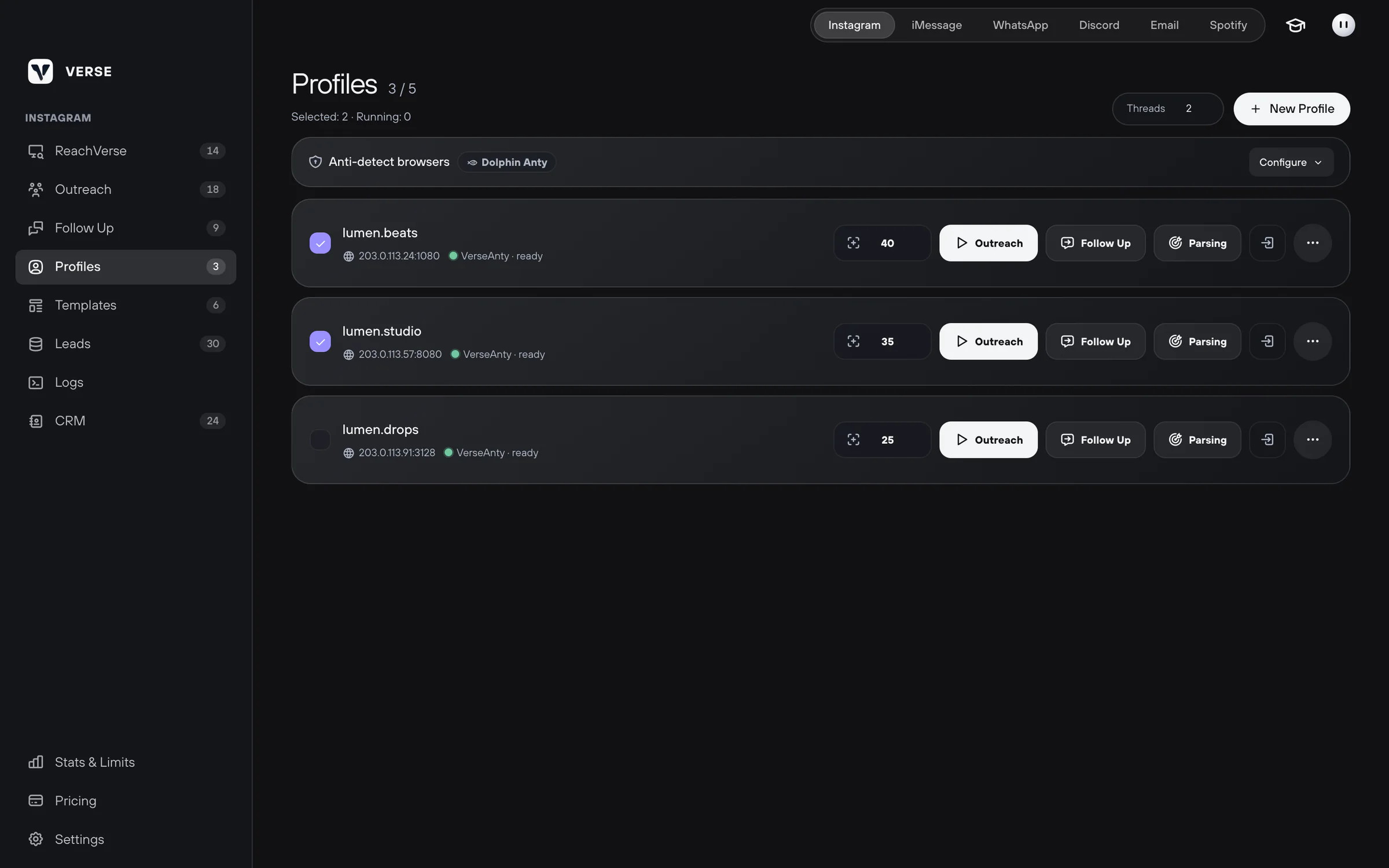
Create a profile
- Open Instagram in Verse. In the left menu, select Profiles.
- Click New Profile.
- In Profile Name, keep a name like "Account #1". Or type your own, for example the account's username.
- In the Proxy block, pick a proxy type and paste the address. The address formats are below. You can also create a profile without a proxy.
- In the Instagram Login block, enter the username or email and the password. You can change them later.
- Click Create Profile. A profile card appears in the list.
Proxies
There are three proxy types:
| Type | What to paste | How it works |
|---|---|---|
| HTTP | host:port or host:port:user:pass | A normal proxy. An address with https:// also works as HTTP |
| SOCKS5 | host:port:user:pass | Verse handles the proxy username and password, not the browser |
| Rotate | a link that changes the IP, like https://provider.com/change-ip | Before every run, Verse opens this link to change the address. Then it uses the computer's internet |
Advice from support: give each account its own proxy that does not change. A residential or mobile proxy is best. Residential means the address of a normal home internet. The proxy country should match the country where the account is usually used. Do not change the country or address of a working account without a reason.
Sign in to the account
When a run starts, Verse signs in to Instagram for you. It uses the username and password from the profile settings.
Sometimes you need to sign in by hand. For example, to enter a confirmation code. Click Login Only on the card. The profile's browser opens, but no messages or search start. Sign in and close the window.
Does Verse say the password is wrong? But the Instagram app works fine? Do not try many times in a row. Move your sign-in with cookies instead:
- On the profile card, open the ⋯ menu.
- Choose Import Cookies.
- Paste the cookies in JSON format, or click Load JSON File.
- Click Import & Save. The new sign-in replaces the old one in the profile.
The same window has Export Cookies. It saves the profile's cookies to a file. To change the username, password or proxy, use ⋯ → Edit Profile.
Warm up the profile for 48 hours
Warm-up means you use a new account by hand for the first 48 hours. A new VerseAnty profile must be in Verse for 48 hours. Only then can you run Outreach, Follow Up or Parsing (finding artists) on it.
During these 48 hours, the card shows a Warm-up badge. It shows how much time is left. If you try to start a run, Verse shows "Warm up the profile first".
What to do during warm-up:
- Open the profile with Login Only.
- Sign in to Instagram.
- Use the account as usual: scroll the feed, watch stories, answer messages.
Turn on automatic sending after the warm-up.
Profiles from Dolphin Anty, Multilogin and AdsPower do not need warm-up. Verse connects to a profile that already exists in that app.
Connect Dolphin Anty, Multilogin or AdsPower
Dolphin Anty, Multilogin and AdsPower are apps that give each account a separate browser. If your accounts are already there, you do not need to create them again. You still manage cookies, proxy and browser details for these profiles in that app.
- In Profiles, find the Anti-detect browsers block.
- Click Configure.
- Pick the app: Dolphin Anty, Multilogin or AdsPower.
- Paste the token. A token is an access key from that app. For Dolphin, it is the Dolphin API token. Next to the field there is a How to get Dolphin token link.
- For Multilogin, paste the Workspace automation token. For AdsPower, paste the AdsPower API token, if a token is turned on in AdsPower.
- Click Save, then Load profiles.
- Click Add next to the profiles you need. They get an In list mark and appear among the cards.
Run from one or several profiles
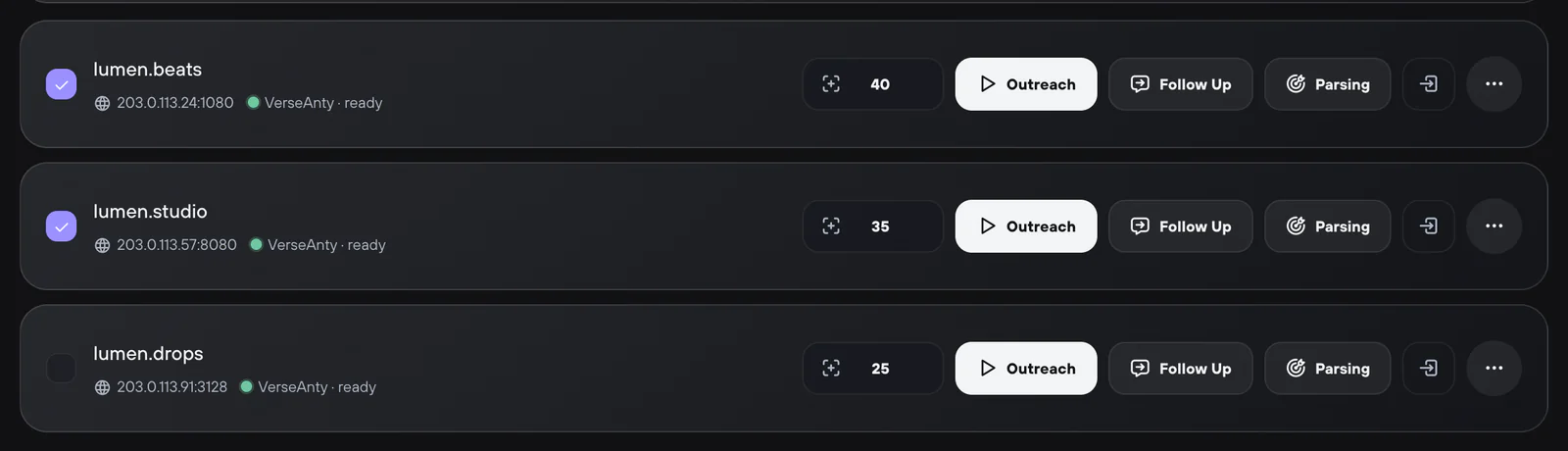
- The checkbox on a card picks the profile for the main run buttons. These buttons are in Outreach, Follow Up and ReachVerse. Above the list you see how many profiles are picked and how many are running.
- The Outreach, Follow Up and Parsing buttons on a card start the task on that profile only.
- Target limit for this run is how many people the profile handles in one run. Use a small number for your first runs.
- Threads is how many profiles work at the same time. Running several profiles at the same time is on Premium and VIP only. On other plans you pick one profile for the main run.
When several profiles work, Verse splits the people between them. This way one person does not get messages from two accounts. The daily message limit is counted for each profile on its own.
Your profile is ready. Next: your first campaign. Before you send a lot of messages, read Safe sending settings.
Read next
- Your first Instagram campaignHow to add artists to your list, write a few versions of your message, set the pause between messages and start your first Instagram DM campaign in Verse.
- Safe sending settingsPlan limits, pauses between messages, warm-up, proxies, how much to send at the start, and what to do if Instagram limits your account after a campaign.
- Find artists on Instagram (ReachVerse)How Verse finds artists on Instagram for you: where to look, who to save, how to skip what it already checked, how to export to Excel or move them to the CRM.
- Stats & LimitsHow to read the Stats & Limits screen: how many messages you sent today and this month, how many you can still send, and when the counters go back to zero.
Something here doesn't match what you see in the app? Tell us and we'll fix the article.
Support