Follow-ups: second messages on Instagram
How to write again to people who did not reply: make a list of people who got your message, remove those who replied, add reminder texts and send them.
- Updated
- October 17, 2026
- Reading time
- 4 min read
- Platforms
- macOSWindows
The Follow Up section sends a second message to people you already wrote to. It is a reminder for people who did not reply. After this guide, you will make a reminder list and send it.
This section has its own list of people and its own messages. They are separate from your first campaign.
Before you start, you need:
- the Instagram profile you used for your first campaign. New VerseAnty profiles need a 48-hour warm-up, the same as for the first campaign. Warm-up means you use the account by hand for 48 hours;
- a first campaign you sent a few days ago.
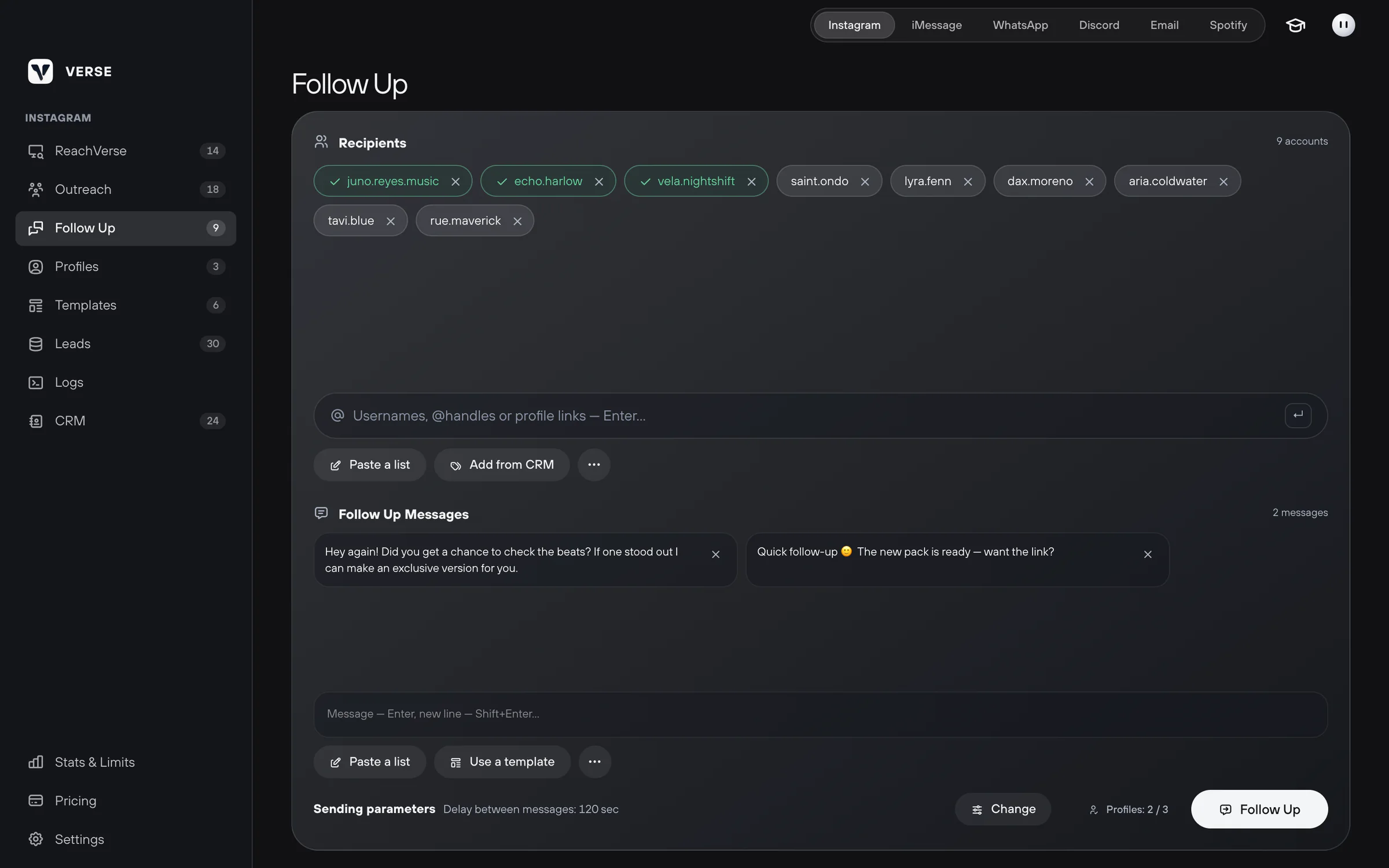
Make the list
You make the list yourself. The fastest way: take everyone who really got your first message. Then remove the people who replied.
- Open the Outreach section.
- Above the list of people, open the ⋯ menu and click Copy delivered. Verse copies the usernames of people who really got the message.
- Note: Verse copies only from the current list. So do this before you clear the list.
- Open Follow Up. In the Recipients block, click Paste a list.
- Paste the usernames, one per line.
- Check the account's DMs and your contact list (CRM). Remove everyone who replied. Use the cross on their username.
Write the reminder text
The reminder goes through the Instagram inbox (Direct). Verse finds your chat with the person and does not open their profile. So the text should sound like the next part of the chat. Make it shorter and simpler than the first message.
- In Follow Up Messages, write one version and press Enter.
- Add one or two more versions. Each person gets one of them, picked at random.
- You can paste all versions at once. Click Paste a list and put an empty line between versions.
- You can take ready texts from the library: Use a template. A template replaces all messages in the field.
Two examples:
Hey! About my last message: the pack is still available. Do you want me to send the link?
Hi, just checking if you saw my last message. If you are busy with other things right now, no problem.
Send the reminders
- Below the messages, find the Sending parameters line. Check the pause.
- To change the pause, click Change. This opens Delay between messages: from 5 to 3600 seconds.
- Note: the pause is the same as in Outreach. If you change it here, it also changes there.
- Pick the profiles in Profiles. Next to the start button, you see how many profiles will work.
- Click Follow Up. You can pause or stop the sending. You see the progress and skipped people in Logs, the record of every action.
Do you want to send the reminder from one account only? Click Follow Up on its card in Profiles.
Reminders use the same daily limit of the profile as your first campaign. The Stats & Limits screen shows what is left.
After sending
- People who got the reminder are marked in the list. Copy delivered in the ⋯ menu copies their usernames. For example, for your next message or for your contact list.
- Clear History in the ⋯ menu deletes the reminder send history. Profiles and settings stay.
- Clear All in the same menu empties the list of people.
How long to wait between messages, and how not to annoy the artist: How to write first messages to artists.
Read next
- Your first Instagram campaignHow to add artists to your list, write a few versions of your message, set the pause between messages and start your first Instagram DM campaign in Verse.
- How to write first messages to artistsSimple tips for producers: what to learn about an artist first, how to make one clear offer, write a few versions, send links and when to send a reminder.
- Shared contact list (CRM)How to keep all your artists in one Verse table: where you talk to them, what stage each one is at, what to do next, what they paid, plus import and export.
- Safe sending settingsPlan limits, pauses between messages, warm-up, proxies, how much to send at the start, and what to do if Instagram limits your account after a campaign.
Something here doesn't match what you see in the app? Tell us and we'll fix the article.
Support