Email campaigns and beat packs
How to connect Gmail or another email, send artists personal emails with a beat pack (Verse splits it into emails under 25 MB) and check if the emails arrived.
- Updated
- October 17, 2026
- Reading time
- 6 min read
- Platforms
- macOSWindows
On this page
After this guide, Verse will send emails from your mailbox. Each artist gets a separate email. It has their name, one version of your text and a beat pack. If the files are big, Verse splits them into several emails in one thread.
What you need first:
- a Gmail account or any other mailbox with SMTP access. SMTP means the email server settings that apps use to send mail;
- for Gmail: 2-Step Verification turned on in your Google account. Without it, you cannot create an app password;
- a list of artist email addresses.
Campaigns run only while Verse is open.
Connect your mailbox
- Open Email in Verse. In the left menu, choose Campaigns.
- Under Sender accounts, click Add Email.
- The Connect Email (SMTP) window opens. It has two options: Google (Gmail) and Custom SMTP.
Gmail with an app password
Your normal Gmail password will not work here. You need an app password. This is a separate 16-letter code. Google gives it for apps like Verse.
- Open your Google account → Security. Turn on 2-Step Verification if it is off.
- Open the App passwords page (myaccount.google.com/apppasswords). In Verse, the Open Google App Passwords button takes you there too.
- Type a name, for example "Verse". Click Create.
- Google shows a 16-letter code. Copy all of it.
- In Verse, pick Google (Gmail).
- Type your Gmail in Email address. Paste the code into App password.
- In Sender name, write your name as it is in your email profile. The artist will see this name in the email.
- Click Verify and save. Verse checks the connection and adds the mailbox.
Another email service (Custom SMTP)
- Pick Custom SMTP.
- Fill in Email address, SMTP Password and Sender name.
- Under SMTP server settings, fill in SMTP Host and Port. These are the email server address and the connection number.
- Turn SSL / TLS security on or off. Usually it is port 465 with SSL or port 587 with TLS. Your email service's help pages have the exact values.
- Click Verify and save.
Do you use email on your own domain? Then check your domain settings (DNS). They must have SPF, DKIM and DMARC records. These records prove that the emails really come from you. This way your emails go to spam less often.
Proxy and the daily email limit
The connection window has two more fields:
- SMTP proxy (optional): a SOCKS5 or HTTP proxy address. For example, from your VPN app. If you fill it in, emails go only through this proxy. If it is empty, Verse tries a normal connection and the VPN on your computer, if you have one;
- Daily email limit: how many emails this mailbox sends in a day. The normal setting is 300. When it reaches the limit, the campaign pauses until the next day.
Send a test email
Next to the connected mailbox, click Test email. Verse sends an email to the same address. If it comes to your inbox, the mailbox is ready.
Add people and text
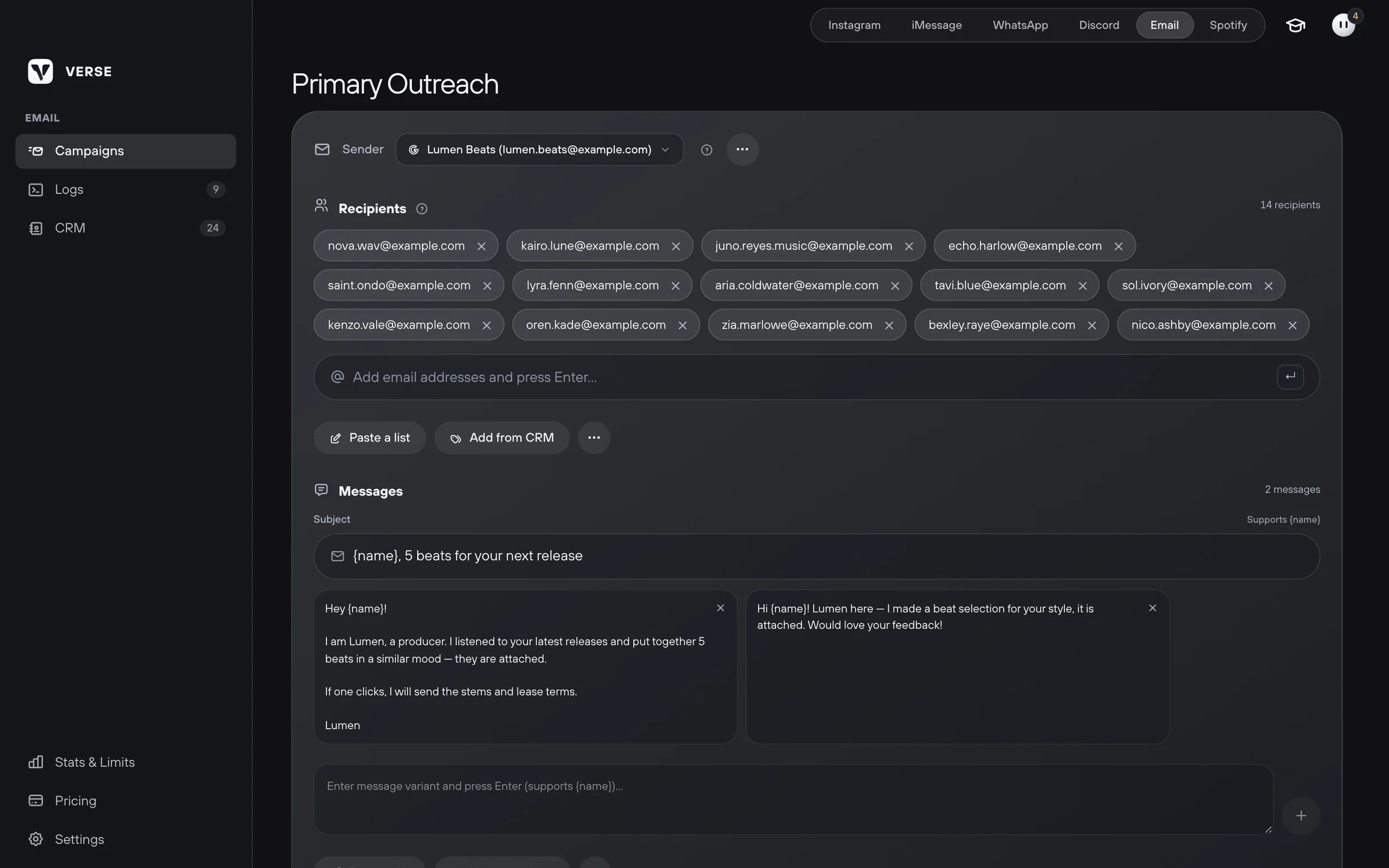
- In Recipients, type an address and press Enter. Put one address per line.
- You can write an address like this:
[email protected]. Or with a name:Name <[email protected]>. Verse uses the name from the second format for{name}. - You can take addresses from your contact list (CRM). Click Add from CRM.
- Verse checks the list for you. It shows how many addresses are Ready and how many are Invalid. It removes repeats.
- Fill in Subject. The campaign will not start without a subject.
{name}also works in the subject. - In Variants, type your text and press Enter.
- Add more versions. Each person gets one of them. To use a saved text, click Use a template. To save your own, click Save template.
Each email goes out on its own. The To field has only one address. CC and BCC are never used. So people do not see each other.
Attach a beat pack
Email services have a size limit for one email: about 25 MB. Verse handles this for you.
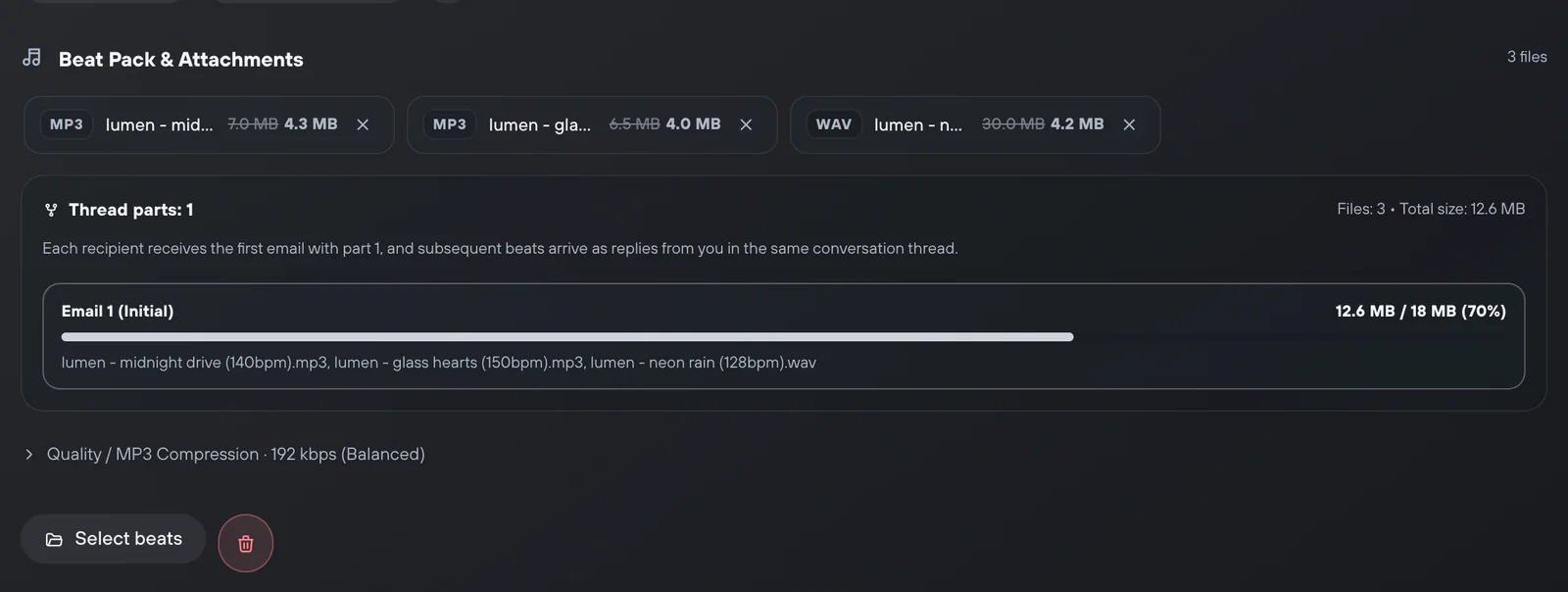
- In Beat Pack & Attachments, click Select beats. Choose MP3, WAV or ZIP files.
- Pick Quality / MP3 Compression: Original (no compression), 192 kbps (Balanced) or 128 kbps (Compact). Compression works only for MP3. WAV files are never compressed.
- Look at the sending plan. Verse shows how many emails the files are split into and what is in each one.
What the artist gets:
- A first email with your text and the first part of the files.
- Then replies from you in the same thread. They have the rest of the files.
These replies with files do not count toward your plan limit.
Start the campaign
- On the Sending parameters line, click Change.
- Set the Delay between recipients: Min delay and Max delay. The normal setting is 40–189 seconds.
- Click Outreach.
- You can Pause, Resume or Stop the campaign.
Check if the emails arrived
Recipients & Delivery Status shows every person. Each one has a status, and an error description if something went wrong. At the top there are filters: All, Sent, Failed, In Queue.
- Copy Sent copies the addresses the email went to. You can mark them in the CRM. Or send them a second email.
- Copy Failed copies the addresses with errors. This makes them easy to check.
- Clean Sent removes people who already got the email. Do this before you start the list again.
The connection, every email and every pause go to Logs, the record of every action.
Limits
The limit counts people. The replies with the rest of a beat pack are free.
| Plan | People per month |
|---|---|
| Trial | 50 |
| Individual | 500 |
| Basic | 2,000 |
| Premium | 5,000 |
| VIP | unlimited |
On top of the plan limit, each mailbox has its own Daily email limit. And your email service has its own sending limits. Stats & Limits shows how many people you have left this month.
Read next
- Message templatesHow to save ready texts in the template library, put them into folders and add them to your Instagram, iMessage, Discord and WhatsApp campaigns in one click.
- Shared contact list (CRM)How to keep all your artists in one Verse table: where you talk to them, what stage each one is at, what to do next, what they paid, plus import and export.
- How to message artists from your contact list (CRM)How to send a message to the artists you picked, right from your contact list: in one channel or in each artist's main channel, with a check of who gets it.
- Plans and limitsHow Verse plans differ: price, number of Instagram accounts, how many messages you can send per day and per month in each channel, and which plan to choose.
Something here doesn't match what you see in the app? Tell us and we'll fix the article.
Support