Control Verse from Telegram and run it 24/7
How to connect your own Telegram bot to start and stop sending from your phone, get notifications and keep Verse working day and night without you.
- Updated
- October 17, 2026
- Reading time
- 5 min read
- Platforms
- macOSWindows
On this page
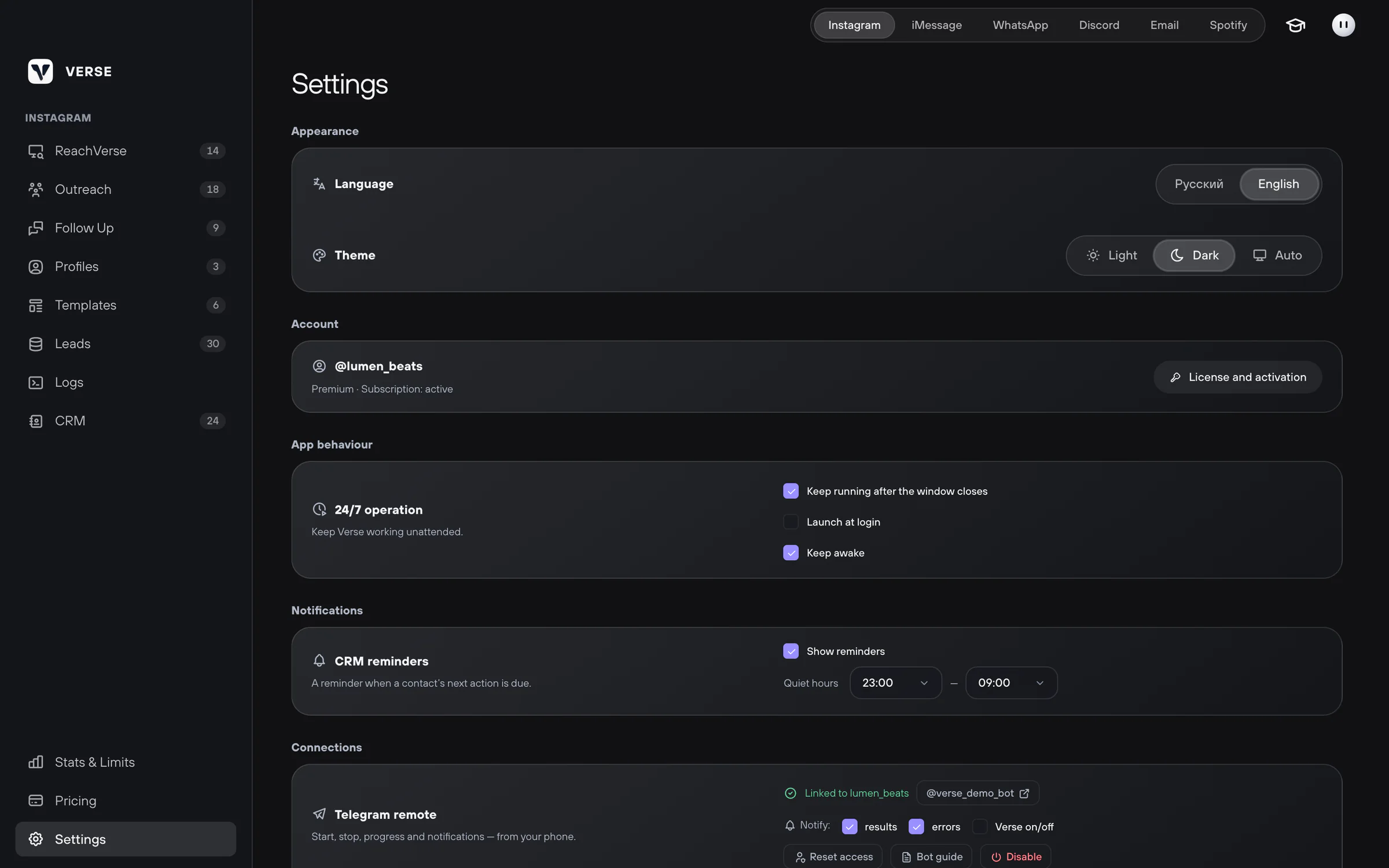
You can control Verse from your phone through Telegram. To do this, you make your own bot. In the app this is called Telegram remote.
The computer with Verse stays on at home or in the studio. From your phone you can:
- start sending messages, finding artists or follow-up messages to people who did not reply;
- see how the work is going and read the logs: notes about what Verse did;
- get messages about errors.
What you need:
- a Premium or VIP plan. On other plans the bot key is saved, but control turns on only after you change your plan;
- Telegram on your phone;
- a computer where Verse stays on all the time.
How to make a bot
- In Verse, open Settings → Connections → Telegram remote.
- Click Open @BotFather. This is Telegram's own bot for making bots.
- Send @BotFather the
/newbotcommand. - Choose a name for the bot and a username (the name for its link).
- Copy the token that @BotFather sends you. A token is an access key for the bot. It looks like this:
123456789:AA.... - In Verse, paste the token into Paste the token.
- Click Save.
When Verse connects, you see: "The bot is online. Link your Telegram — step 3."
How to link your phone
- Point your phone camera at the QR code in the Link your phone block.
- In the bot that opens, tap Start.
- If scanning is not easy, click Open in Telegram or Copy code. Then send the code to the bot.
- Wait for "The remote is online and linked to your Telegram."
The bot only listens to your linked chat. If someone writes to it from another account, it says it is linked to a Verse app.
To link a different phone, click Reset access. Verse gives you a new code. The old chat can no longer control the bot.
What the bot can do
| Button | What it does |
|---|---|
| 📊 Status | Shows what is running, how many messages went out and how many addresses are waiting in the lists |
| 🚀 Run | Starts work. Choose DM (direct messages), Scout (finding artists) or Follow-up (follow-up messages). The bot shows the plan and starts only after you say yes |
| ⏹ Stop | Stops all accounts |
| 📜 Logs | Shows the latest log lines. You can show only errors |
| 📝 Lists | Adds usernames or links to a list: for messages, for finding artists or for follow-ups. Send them as text or as a .txt file. Verse skips repeats |
| ⚙️ Settings | Notifications, keep awake, work in the background and start with the computer |
The bot uses message texts, pauses and filters from the app. You cannot change them from your phone.
The bot skips some accounts:
- new accounts that are still in warm-up. Warm-up means you use a new account by hand for the first 48 hours;
- accounts that used up their daily limit.
Notifications
In the bot settings, next to Notify:, there are three checkboxes:
- results: a message about the work updates as it goes. The summary comes as a separate notification;
- errors: problems with login or proxies, Instagram checks and limits that ran out. At most once a minute. A proxy is a separate internet address for an account;
- Verse on/off: helps you see that the computer restarted or updated.
How to keep Verse working day and night
Open Settings → App behaviour → 24/7 operation. Turn on:
- Keep running after the window closes. The window hides, but Verse keeps working. Its icon stays in the menu bar on a Mac or next to the clock on Windows. To quit Verse fully, use the icon or Cmd + Q;
- Launch at login. Verse starts by itself after a restart. This works only in the installed app;
- Keep awake. The computer does not sleep while Verse is open.
If the bot does not answer
| What you see | What to do |
|---|---|
| "Telegram rejected the token" | Copy the token again from @BotFather and save it in Verse |
| "This bot is already used by another copy of Verse or another service" | Keep the bot on one computer only. Or make a new bot |
| "Telegram is unreachable" | You do not need to do anything. The bot connects again when the internet is back |
| The bot says it is linked to a Verse app | Your chat is not linked. Scan the QR code or send the code from Settings |
| An old button in the chat does nothing | Verse was off, and Telegram thinks the tap is too old. Open "📊 Status" again |
To turn off control from Telegram, click Disable in Verse settings.
Read next
- Plans and limitsHow Verse plans differ: price, number of Instagram accounts, how many messages you can send per day and per month in each channel, and which plan to choose.
- Safe sending settingsPlan limits, pauses between messages, warm-up, proxies, how much to send at the start, and what to do if Instagram limits your account after a campaign.
- Common problems and fixesWhat to do when Verse does not open or does not take your key, Instagram does not take messages, artist search finds no one, or iMessage and Gmail do not send.
Something here doesn't match what you see in the app? Tell us and we'll fix the article.
Support