Discord campaigns
How to connect a Discord account, make a list of channels from their links, post text and beats to them with pauses, and run several campaigns in a row.
- Updated
- October 17, 2026
- Reading time
- 4 min read
- Platforms
- macOSWindows
On this page
After this guide, Verse will post your message and files on Discord. The message goes to a list of channels from your account. One channel at a time, with a pause in between. You can run several campaigns one after another.
Verse posts in channels on servers. For this, it needs the channel link. Verse does not send private messages to people.
What you need first:
- the Basic, Premium or VIP plan. The trial lets you post in 20 channels. The Individual plan does not include Discord;
- a Discord account that is already on the servers you need and can post in their channels;
- channel links like
https://discord.com/channels/SERVER_ID/CHANNEL_ID. To copy a link in Discord, right-click a channel → "Copy Link".
Add a Discord profile
A profile is a separate Chrome window where you sign in to Discord once. Verse remembers this sign-in.
- Open Discord in Verse. In the left menu, choose Profiles.
- Click Add profile.
- Type a name, for example "Work Discord". Click Create.
- Chrome opens. Sign in to Discord. The profile is saved by itself.
- After you sign in, close the window with Close on the profile card. To open it again, click Open.
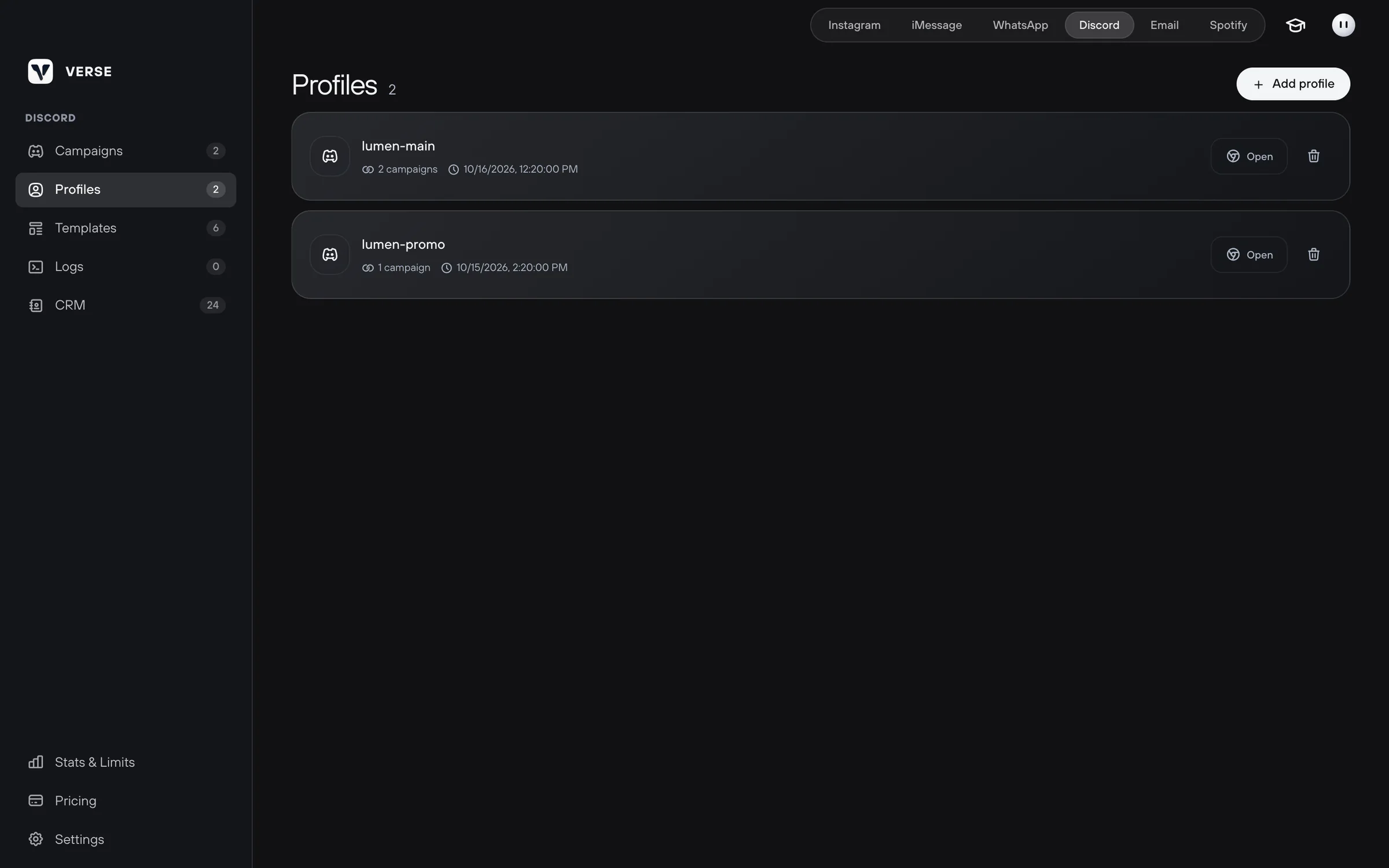
If you delete a profile, its Discord sign-in is deleted too. Campaigns that used it will have no account.
Create a campaign
- Open Campaigns and click New campaign.
- Type a name and click Create.
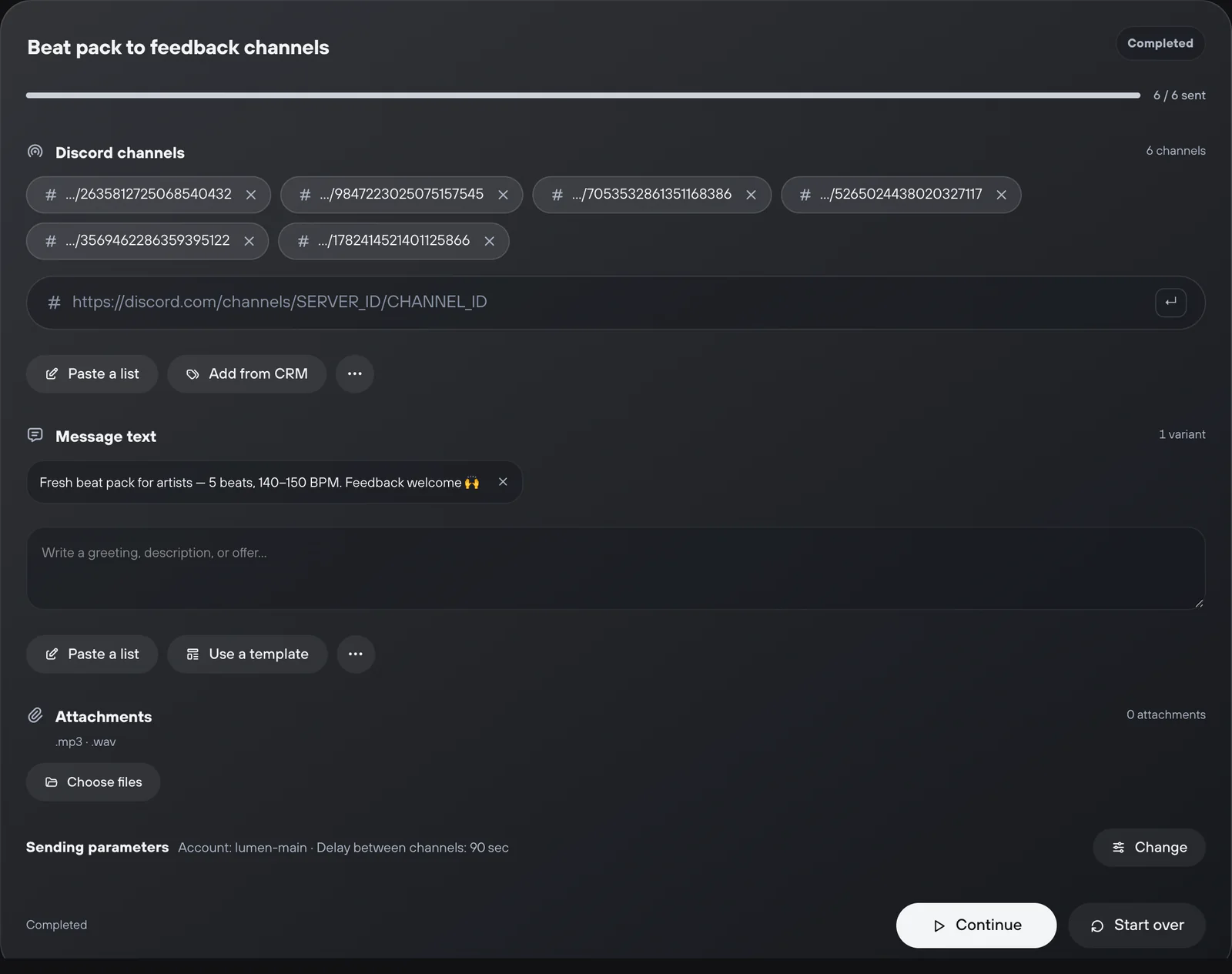
- In Discord channels, paste a channel link and press Enter.
- To add many links at once, use Paste a list. Put one link per line. If the channels are saved in your contact list (CRM), click Add from CRM.
- In Message text, type your text and press Enter.
- Add more versions with Add variant. Each channel gets one version, picked at random. To use a saved text, click Use a template.
- In Attachments, click Choose files or drag files there. Usually this is an MP3 or WAV with a beat or loop.
- On the Sending parameters line, click Change.
- Under Account, pick the Discord profile.
- Under Delay between channels, set the pause in seconds. The normal setting is 40 seconds.
The campaign saves itself. You can close Verse and come back to it later.
Start the campaign
- Click Start campaign. Verse opens the profile and posts to the channels in order.
- The campaign window shows how many channels are done out of the total. Logs, the record of every action, has the details of each step.
- You can Pause the campaign. Continue starts it again from the same channel.
- Start over runs the list from the very beginning.
Sometimes sending stops because of an error. Then Verse does not know for sure if the message reached the channel. It shows "The previous delivery was interrupted…". Check the channel in Discord. If the message is there, click Skip and continue. Verse moves on and does not post it again.
Do you want to send the campaign to all channels again? Click Clear history. All channels will count as not sent.
Run several campaigns one after another
This is useful when different servers get different texts or files.
- In the Campaigns list, tick the campaigns you want.
- Click Run selected. The campaigns run one after another.
- To stop the queue, click Stop queue.
Limits
The limit counts channels. Each channel is counted right before Verse posts to it.
| Plan | Discord channels per month |
|---|---|
| Trial | 20 |
| Individual | not included |
| Basic | 1,000 |
| Premium | 3,000 |
| VIP | unlimited |
When you reach the limit, the campaign pauses. You can continue from the same channel. You can do this when the limit starts again or when you change your plan.
Read next
- Message templatesHow to save ready texts in the template library, put them into folders and add them to your Instagram, iMessage, Discord and WhatsApp campaigns in one click.
- Shared contact list (CRM)How to keep all your artists in one Verse table: where you talk to them, what stage each one is at, what to do next, what they paid, plus import and export.
- Safe sending settingsPlan limits, pauses between messages, warm-up, proxies, how much to send at the start, and what to do if Instagram limits your account after a campaign.
- Plans and limitsHow Verse plans differ: price, number of Instagram accounts, how many messages you can send per day and per month in each channel, and which plan to choose.
Something here doesn't match what you see in the app? Tell us and we'll fix the article.
Support