Assistant and reminders
How the Verse assistant helps you use the app and answer artists, what it can do for you, how many messages you can send it, and how reminders work.
- Updated
- October 17, 2026
- Reading time
- 5 min read
- Platforms
- macOSWindows
On this page
The assistant is a chat inside Verse. It can:
- explain how the app works;
- find the cause of an error;
- suggest what to reply to an artist;
- set reminders in your contact list (CRM). This is one table with every artist.
The assistant is on every plan once your license is active.
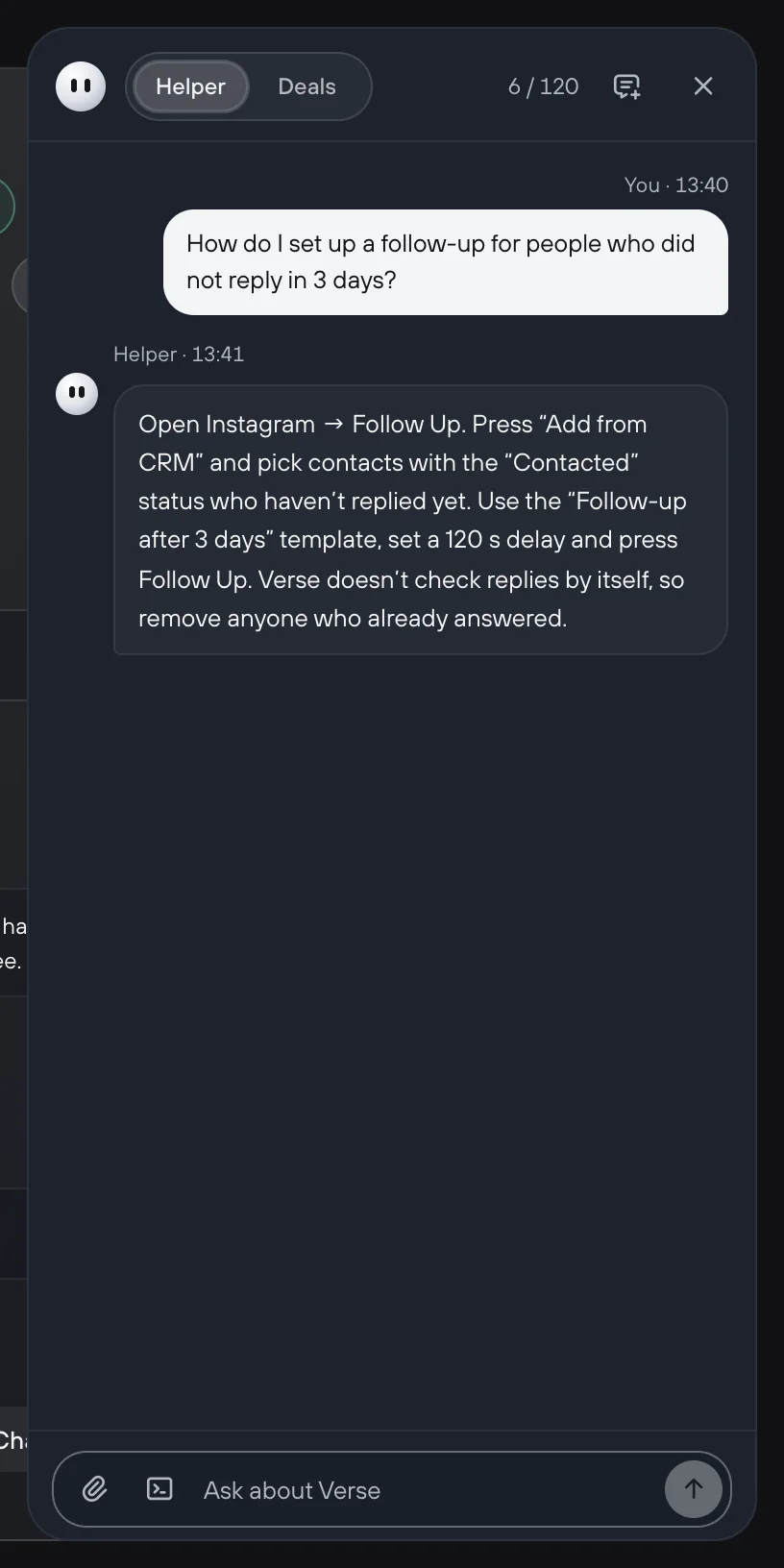
To open it, click Assistant: the mascot icon in the top bar. The number on the icon shows how many CRM tasks are due today.
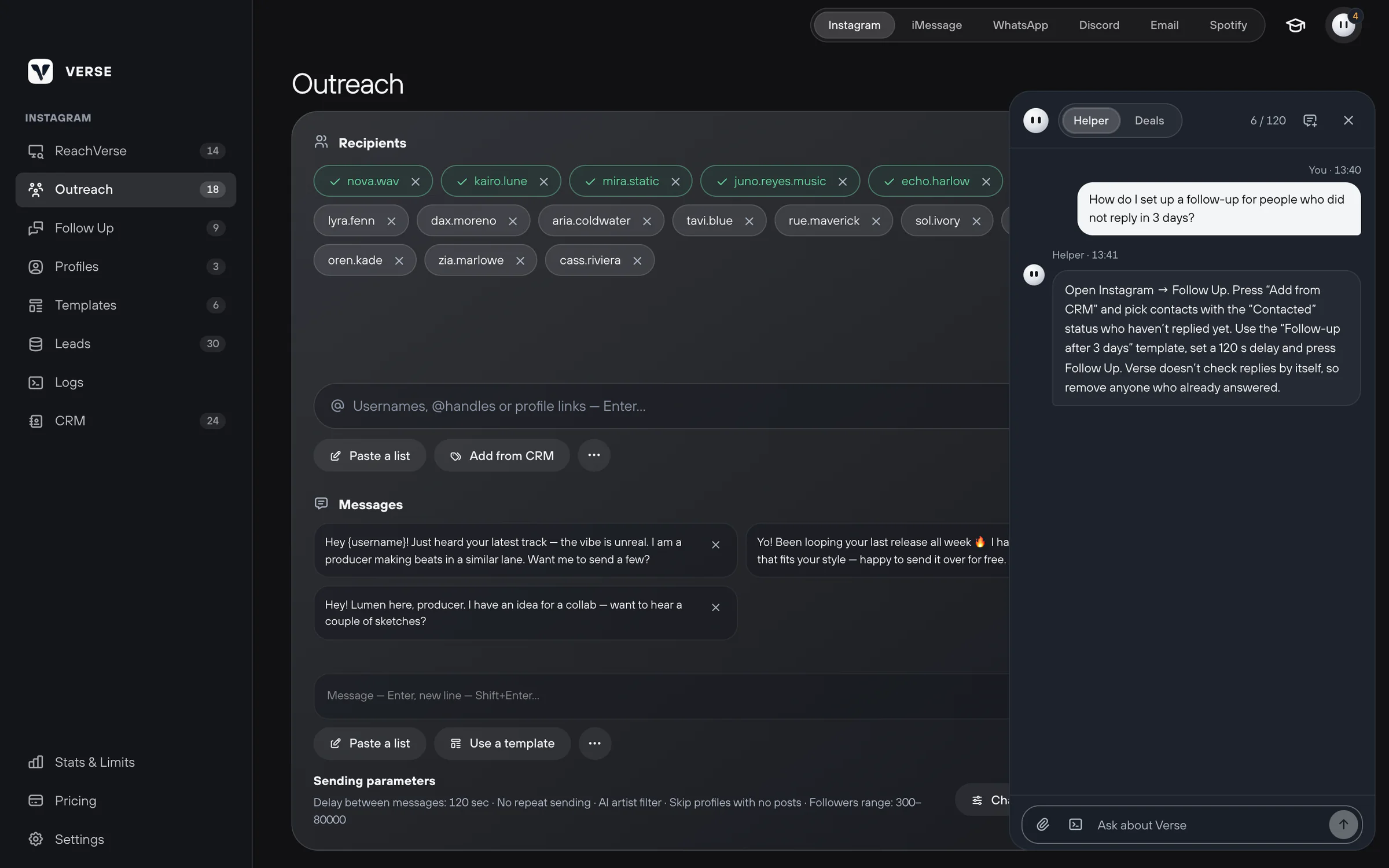
Two modes
Pick the mode with the switch at the top of the panel. Each mode has its own chat history and its own message limit.
| Mode | What it is for |
|---|---|
| Helper | Questions about Verse. For example, mass messages, follow-up messages, the CRM, reminders, proxies, errors and plan limits. It can open the right section or fill in fields for you |
| Deals | Talking with artists. Send a screenshot or describe the situation. The assistant gives you a ready Text for the artist. In Why, it says in short why the answer is like this. It also suggests a CRM reminder |
A proxy is a separate internet address for an account.
Example questions for Helper: "Why did the bot stop", "How to set a CRM reminder". For Deals: "Silent after the pack", "Haggling over price".
Screenshots, logs and artists
- Attach screenshot: add up to 4 screenshots to one message. Only PNG and JPEG work.
- Attach logs: send the logs. Logs are notes about what Verse did. With them, the assistant can see why a task stopped.
- To ask about one artist, open their card in the CRM. Click "Ask the assistant". The artist is added to your message. Their phone number and email are not sent.
Do not send tables to the chat. The assistant will tell you to load the file into the CRM with Import XLSX / CSV.
What the assistant can do for you
The assistant changes nothing without your OK. Its actions show up in the answer as buttons. There are three kinds.
Going somewhere. These are plain links. The assistant can:
- open a section;
- show where a button is;
- open an artist's card or a list of artists in the CRM;
- start a guide to the app.
Changes. These happen only after you click Run. The assistant can:
- add people to a mass message or to follow-up messages;
- paste texts and set the pause;
- add places to find artists;
- create a template;
- set a status, money, a note or a reminder in the CRM;
- mark that you just wrote to an artist;
- change the theme and language;
- turn on CRM reminders.
Undo brings back the fields the assistant changed. It does not touch fields you changed yourself after that.
Starting and stopping. The assistant can start or stop mass messages, follow-up messages and artist search. It does this only after you confirm in a separate window.
The assistant never deletes data. It never touches your license, payments, passwords, access keys (tokens), proxies, backups or updates. You do these things yourself.
If the answer does not help, click Contact support in the panel.
How many messages you can send the assistant
The two modes have separate limits. They count per day and per month in UTC time (world time).
| Plan | Helper: per day / month | Deals: per day / month |
|---|---|---|
| Trial | 20 / 150 | 10 / 40 |
| Individual | 40 / 400 | 20 / 120 |
| Basic | 80 / 600 | 40 / 200 |
| Premium | 120 / 1,000 | 60 / 350 |
| VIP | 200 / 1,500 | 100 / 600 |
The panel shows how many messages you used today and this month. If the assistant is down for a while, your message does not count.
Chat history
Each mode's history is stored on your computer. New chat clears it in the current mode.
On the server, chats with the assistant are kept for 30 days in masked form.
CRM reminders
A reminder comes when the time in an artist's Next action arrives. If the Verse window is open, you see it in the app. If not, you get a computer notification.
- Open Settings → Notifications.
- In the CRM reminders block, turn on Show reminders.
- Set Quiet hours. This is the time when no reminders come. For example, at night.
The assistant panel has Today’s plan. It lists artists with a task for today or a task that is late. Each one has buttons:
- What to write?: the assistant suggests a text for this artist;
- +1 day and +3 days: move the reminder later;
- Done: mark the task as done.
To learn how to set next actions and statuses, read Shared CRM.
Read next
- Shared contact list (CRM)How to keep all your artists in one Verse table: where you talk to them, what stage each one is at, what to do next, what they paid, plus import and export.
- How to message artists from your contact list (CRM)How to send a message to the artists you picked, right from your contact list: in one channel or in each artist's main channel, with a check of who gets it.
- How to write first messages to artistsSimple tips for producers: what to learn about an artist first, how to make one clear offer, write a few versions, send links and when to send a reminder.
- Stats & LimitsHow to read the Stats & Limits screen: how many messages you sent today and this month, how many you can still send, and when the counters go back to zero.
Something here doesn't match what you see in the app? Tell us and we'll fix the article.
Support