iMessage: sending from a Mac or an iPhone
How to get a Mac or iPhone ready for iMessage, add people and messages, choose how to send, and stay inside the limit of 60 new contacts a day.
- Updated
- October 17, 2026
- Reading time
- 8 min read
- Platforms
- macOSWindows
On this page
After this guide, you will start an iMessage campaign. You can message phone numbers or Apple IDs. There are two ways:
- from a Mac, through the Messages app;
- from an iPhone, through Phone Bridge. Phone Bridge means your iPhone sends the messages when Verse tells it to. This way also works on Windows.
What you need first:
- the Basic, Premium or VIP plan. The trial lets you message 20 contacts. The Individual plan does not include iMessage;
- to send from a Mac: a Mac where you are signed in to your Apple ID in Messages;
- to send through a phone: an iPhone with iMessage. The phone and the computer must use the same Wi-Fi;
- numbers in international format with a "+", or emails linked to an Apple ID.
Two ways to send
| From a Mac | Through an iPhone (Phone Bridge) | |
|---|---|---|
| Works on | macOS only | macOS and Windows |
| Sent from | the address in Messages "Start new conversations from" | your iPhone's number |
| Pauses | your campaign settings | the phone waits 20–50 seconds between messages |
| Follow Up mode (all messages in order) | yes | no, each person gets one version |
{Name} and {Phone} | yes | no, the text is sent as written |
| Start button | Start Outreach | Phone Bridge mailing |
On Windows there is no Start Outreach button. There, you can send only through an iPhone. Chats and the import from Contacts are also Mac only.
Get your Mac ready
Verse controls the Messages app. Your Mac must allow this.
- Open Messages. Check that you are signed in to your Apple ID and iMessage is on.
- In Verse, open iMessage. If some permissions are missing, a macOS permissions required panel appears at the top of Campaigns.
- Next to Messages automation, click Open settings. Turn Verse on in System Settings.
- Do the same for Full Disk Access. This lets Verse read files on your Mac. Verse needs it to show your chats in Chats.
- Go back to Verse and click Check again. Both items should say Granted.
Add people and messages
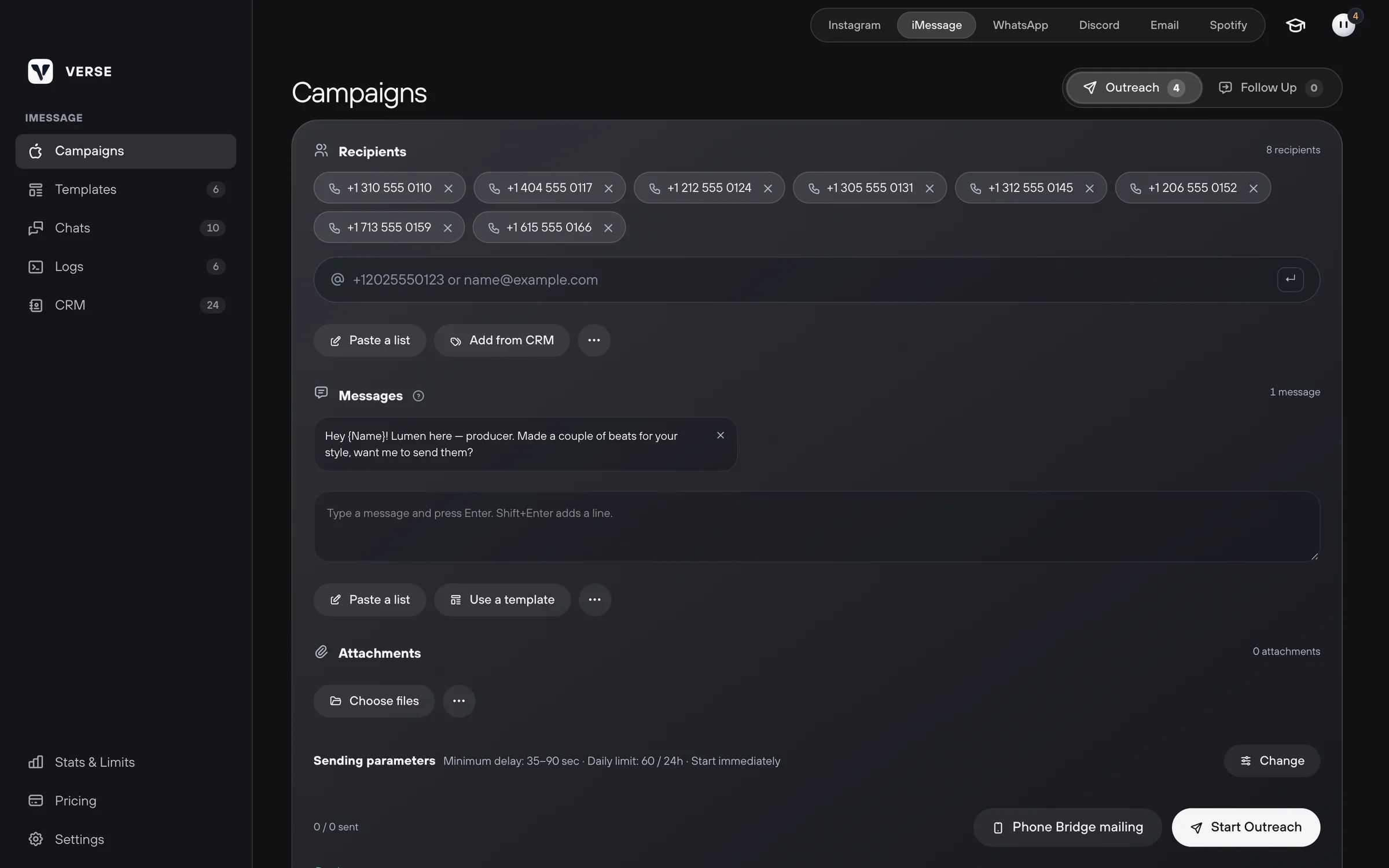
At the top of Campaigns there is a mode switch:
- Outreach: each person gets one random version of the message;
- Follow Up: each person gets all messages in order, from top to bottom. This is useful to write again to people you already messaged.
Each mode has its own list and its own send history.
- In Recipients, type a number or email and press Enter.
- To add a long list, use Paste a list. Put one address per line.
- You can take people from your contact list (CRM). Click Add from CRM. Tick the statuses you need. The window shows them as tags. Click Apply. Their numbers and emails are added to the list.
- In Messages, type a message and press Enter. Each card is a separate version. For a new line inside a message, press Shift + Enter.
- To use the person's name, put
{Name}in the text. Verse adds the contact's name from the CRM. If there is no name,{Name}disappears together with the extra comma. {Phone}adds the person's number or email. Write{Name}and{Phone}with a capital letter.- To use a saved text, click Use a template.
- In Attachments, click Choose files or drag files there. You can add up to 10 files, up to 100 MB each.
Set the sending options
The Sending parameters line shows your current settings. Click Change to edit them. They work for this campaign only.
| Setting | What it does |
|---|---|
| Minimum delay and Maximum delay | The pause between people. Verse picks it at random between these numbers. The normal setting is 40–189 seconds |
| Daily limit | How many people to message in 24 hours. The normal setting is 60 |
| Scheduled start | Date and time to start. If you leave it empty, it is Start immediately |
These settings are only for sending from a Mac. Phone Bridge picks its own pauses.
Start from a Mac
- Click Start Outreach. In follow-up mode, the button is Start Follow Up.
- In the window that opens, check which address will send the messages.
- Click Continue.
- A "sent" counter appears at the bottom. You can Pause, Resume or Stop the campaign.
Verse marks a message as sent only after it sees it in the chat. In this mode, it does not write to the same people twice. If you want to write to them again, Verse offers to Clear history.
You can minimize Verse while it sends. Close the window only if Keep running after the window closes is on in Settings. If you quit Verse completely, sending stops.
Start through an iPhone (Phone Bridge)
How it works: Verse starts a small server on your computer, inside your home network. The iPhone gets the task from it with the "Verse iMessage" shortcut. A shortcut is a small program in the Shortcuts app on the iPhone. Then the iPhone sends the messages from its own number.
- Connect the iPhone and the computer to the same Wi-Fi.
- Click Phone Bridge mailing. A window with a QR code opens. The server starts by itself.
- If the "Verse iMessage" shortcut is not on your iPhone yet, click Save shortcut file.
- Send the file to yourself. For example, to Saved Messages in Telegram.
- Open the file on the iPhone to install the shortcut.
- Point the iPhone camera at the QR code. Confirm that the shortcut can run.
- Do not lock the phone while it sends. The phone confirms each delivery. Each number appears in the window under "Delivered".
- When all messages are sent, click Assign status to contacts.
Has the phone finished, but the window is still waiting? Click Mark all as sent.
After the campaign
When a campaign ends, Verse shows What should happen to sent recipients?.
- Pick a status under Assign a status to sent contacts.
- Click Assign. These people move to the next stage in the CRM.
Only people who are already in the CRM get the status. To change nothing, click Make no changes.
Every sent message is written to Logs, the record of every action.
Chats and contacts (Mac only)
Chats shows your chats from Messages. You can reply with text or a file without switching windows. You can add people to the CRM. This section works after you give Verse Full Disk Access.
You can move people from the Contacts app to the CRM:
- Open CRM → Import → macOS Contacts.
- Select the people you need.
- Click Import.
All their numbers and emails are added. You cannot import entries with no number or email.
Limits
| Plan | iMessage contacts per month |
|---|---|
| Trial | 20 |
| Individual | not included |
| Basic | 600 |
| Premium | 1,200 |
| VIP | 1,800 |
Every plan has a strict limit: 60 new contacts a day. Sending from a Mac and through an iPhone is counted together.
If you reach the limit in the middle of a campaign, Verse pauses it. Everything done so far is saved. Phone Bridge takes only as many contacts as your limit still allows. It tells you this in the window.
Stats & Limits shows how many contacts you used today and this month.
Read next
- Shared contact list (CRM)How to keep all your artists in one Verse table: where you talk to them, what stage each one is at, what to do next, what they paid, plus import and export.
- How to message artists from your contact list (CRM)How to send a message to the artists you picked, right from your contact list: in one channel or in each artist's main channel, with a check of who gets it.
- Message templatesHow to save ready texts in the template library, put them into folders and add them to your Instagram, iMessage, Discord and WhatsApp campaigns in one click.
- Safe sending settingsPlan limits, pauses between messages, warm-up, proxies, how much to send at the start, and what to do if Instagram limits your account after a campaign.
Something here doesn't match what you see in the app? Tell us and we'll fix the article.
Support