How to message artists from your contact list (CRM)
How to send a message to the artists you picked, right from your contact list: in one channel or in each artist's main channel, with a check of who gets it.
- Updated
- October 17, 2026
- Reading time
- 5 min read
- Platforms
- macOSWindows
On this page
From your contact table you can message the artists you picked. The message goes to Instagram, Discord, iMessage, WhatsApp or email. You do not need to switch between sections.
After sending, Verse shows the results. You can give everyone who got the message the next stage in one click.
What you need first:
- artists in the table with an address in the channel you need. For example, an Instagram username;
- your account in this channel, connected to Verse.
To fill the table, read Shared CRM.
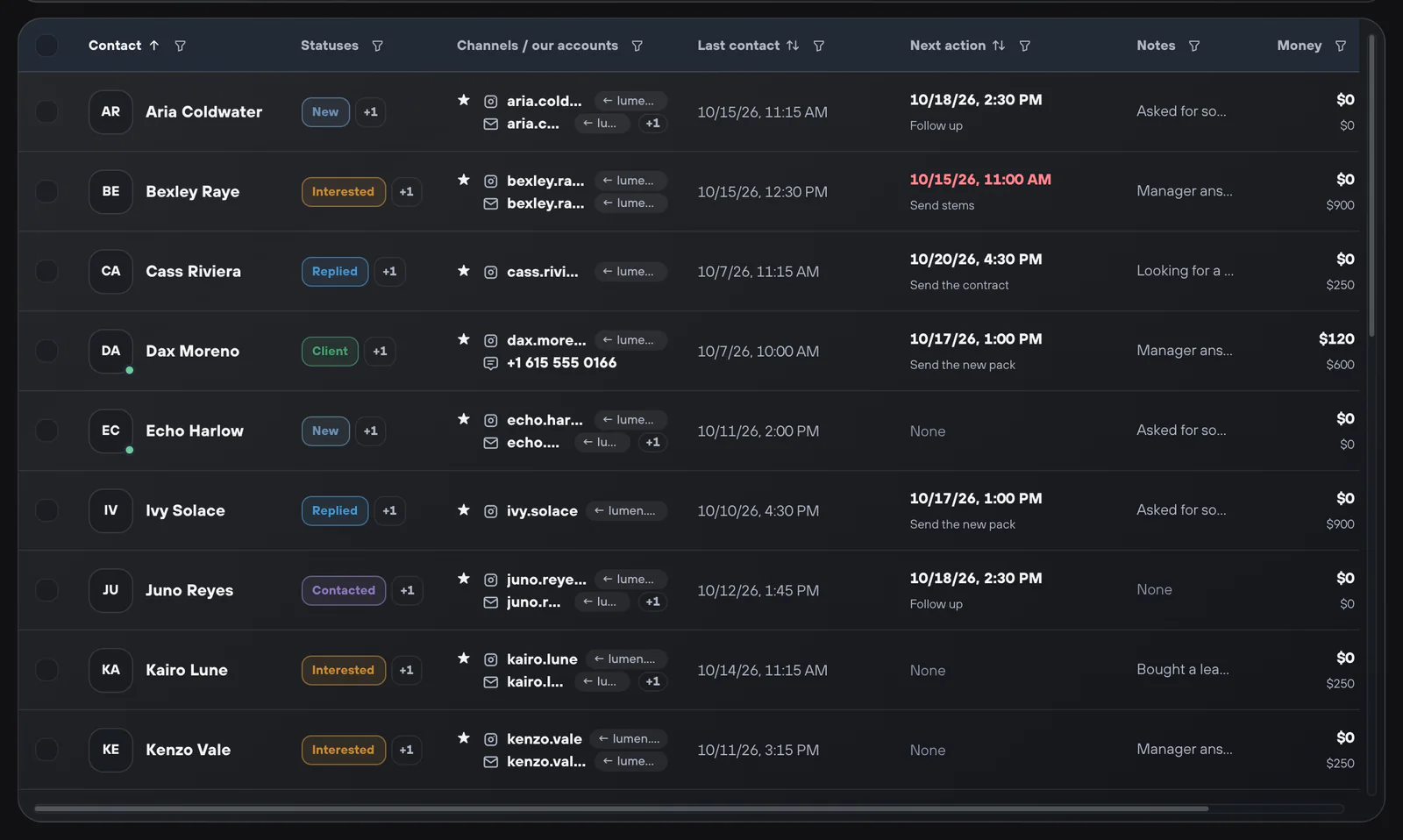
How to choose who gets the message
- Open CRM.
- Keep only the artists you need in the table. For example, filter by the "New" status.
- Tick the rows you need.
- On the bar at the bottom, click New mailing.
To write to one person, open their card and click Write.
How to choose where to send
At the top of the window, choose one of two options:
- Single channel: everyone gets the message in one place: Instagram, Discord, iMessage, WhatsApp or Email. Below, choose Our account: your account that sends the messages.
- Multi-dispatch: send in several channels at once. Each artist gets the message in their main channel. It comes from your account that is linked to this artist. All channels send at the same time.
With Multi-dispatch you see how many artists are in each channel. If an artist has no linked account, you can pick one here.
What to keep in mind for each channel:
| Channel | What to keep in mind |
|---|---|
| Text only, no files. The pause is 5 seconds or more | |
| iMessage | Choose where to send from. From Mac: the Messages app, macOS only. From phone: send through your iPhone (Phone Bridge). For this, the server must be running and the iPhone must be on the same network |
| macOS and Windows. First connect WhatsApp in its section, under Connection | |
| Pick your email address or add one with Add email. Fill in Email subject |
How to write the messages
- In the Action block, choose how to send. One random: each artist gets one message from the list. Sequential: each artist gets all messages in order.
- Set Delay between messages. For iMessage, email and WhatsApp, set a "from" and "to" value. Verse picks a pause between them.
- Write the text in the Messages block.
- To add another version of the text, click Add message.
- To use a saved text, pick it from the Use template list.
- To save your texts as a template, type a name in the field under the messages. Then click Save.
- If needed, add files in the Attachments block. Files are not sent on Instagram.
How to check who gets the message
The Who will receive the message list splits the artists into two parts: Ready to send and Will be skipped. Each skipped artist shows the reason:
- "No address for the selected channel": for example, the artist has no Instagram username;
- "“Do not contact” is enabled": the person asked you not to write;
- "Invalid email address" or "Invalid WhatsApp number": the address has a mistake;
- "This number was already messaged from WhatsApp";
- "macOS and Windows only — these contacts will be skipped": this happens with WhatsApp in the web version. Send from the desktop app.
If many artists are skipped, close the window. Add the missing addresses in their cards. Then open the mass message again.
How to start and follow the sending
- Click Start mailing.
- A bar with the progress appears above the table. It shows how many messages went out, the pause and the account.
- If needed, click Pause, Resume or Stop.
- See each artist's state right in the table: "Mailing pending", "Mailing sent" or "Mailing failed".
Only one mass message from the table runs at a time. Until it ends, you cannot start another one.
Before a big mass message, open the Stats & Limits screen. It shows how many more messages you can send in each channel.
Results and the next status
When the sending ends, the Campaign results window opens. It shows how many were Sent, Failed and Skipped. Below you see the result for each artist.
You do not have to change statuses by hand. Use Assign a status to sent contacts:
- Pick a status. For example, "Contacted".
- Click Assign.
Only the artists who got the message get the status.
Then fill in Next action. Set the date to write again to those who did not reply. Verse reminds you on that day. To learn how reminders work, read Assistant and reminders.
Read next
- Shared contact list (CRM)How to keep all your artists in one Verse table: where you talk to them, what stage each one is at, what to do next, what they paid, plus import and export.
- Message templatesHow to save ready texts in the template library, put them into folders and add them to your Instagram, iMessage, Discord and WhatsApp campaigns in one click.
- Safe sending settingsPlan limits, pauses between messages, warm-up, proxies, how much to send at the start, and what to do if Instagram limits your account after a campaign.
- Stats & LimitsHow to read the Stats & Limits screen: how many messages you sent today and this month, how many you can still send, and when the counters go back to zero.
Something here doesn't match what you see in the app? Tell us and we'll fix the article.
Support