Find artists on Instagram (ReachVerse)
How Verse finds artists on Instagram for you: where to look, who to save, how to skip what it already checked, how to export to Excel or move them to the CRM.
- Updated
- October 17, 2026
- Reading time
- 7 min read
- Platforms
- macOSWindows
On this page
The ReachVerse section finds artists for you. You give it some accounts to start from. Verse opens them through your Instagram profile and finds the people connected to them.
Verse saves the right people to Leads, the list of artists you found. For each one, it saves the profile link, category and bio. It also saves email and phone, if the artist shows them.
Before you start, you need an Instagram profile in Profiles that you are signed in to. A new VerseAnty profile needs a warm-up first. Warm-up means you use the account by hand for 48 hours. See Instagram profiles.
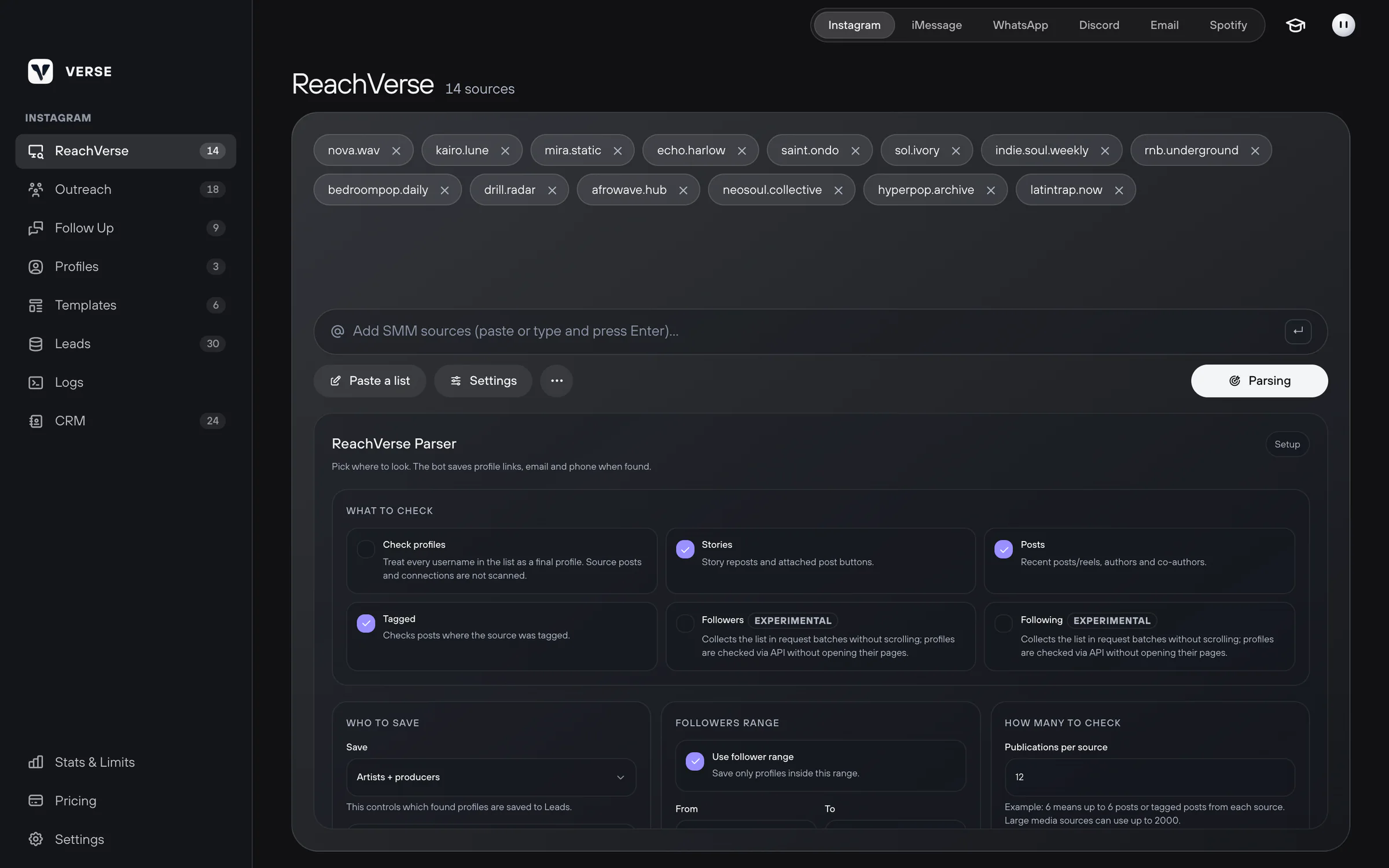
Add sources
A source is an account where the artists you want come together. For example, a release page, a music media page, a curator, a producer or a label in your genre. A few small sources usually give more good artists than one huge source.
- Open Instagram in Verse. In the left menu, select ReachVerse.
- Type the username of a source and press Enter.
- To add many sources at once, click Paste a list. Paste one username or link per line.
- Click Settings to open the search settings.
Where to look
In What to check, tick where Verse should look for people. You can tick more than one.
| Option | What it does |
|---|---|
| Stories | Looks at story reposts on the source and the buttons that open posts |
| Posts | Looks at recent posts and reels of the source, and their authors and co-authors |
| Tagged | Looks at posts where the source is tagged |
| Followers | Test feature. Collects the source's followers in parts. Checks profiles without opening their pages |
| Following | Test feature. The same for accounts the source follows |
| Check profiles | Checks each username on your list as a ready profile. It does not look at posts or connections. If you turn it on, the other options turn off |
Check profiles is useful when you already have a list of artists. For example, from Spotify or a spreadsheet. Then Verse only collects details about these artists.
Who to save
In the Who to save block, you choose which profiles go into Leads.
- Save: Only artists, Artists + producers or Everyone.
- Only with contacts: save only people with an email or phone number.
- Followers range: how many followers a profile must have. Turn on Use follower range and fill in From and To. If To is 0, there is no top limit.
How many to check
- Publications per source: how many posts or tagged posts to check for each source. For example, 6 means up to 6 posts. For big media pages you can set up to 2000.
- Followers per source and Following per source: from 1 to 5,000. A safe start is 100 per source. Then raise it slowly.
The trial has extra limits. One run can use up to 2 sources. Each source gets 6 posts and 100 followers.
Your plan's search limit counts only new profiles saved to Leads. Profiles that you already have, or that did not pass the filters, do not count.
| Plan | Per day, per profile | Per month, whole plan |
|---|---|---|
| Trial | 17 | 17 |
| Individual | 40 | 400 |
| Basic | 60 | 1,000 |
| Premium | 80 | 2,000 |
| VIP | no plan limit | no plan limit |
How Verse skips what it already checked
Verse remembers which sources, stories, posts and profiles it already checked. It does not spend time on them again. If you stop a search halfway, the next run starts from the same place.
Settings in the Memory block:
| Setting | What it does when it is on |
|---|---|
| Skip SMM sources for 24h | Does not open a source if it was checked in the last 24 hours |
| Keep looking for new items | If the top posts or profiles are already checked, Verse goes down to find new ones |
| Go through new SMM sources first | Starts with sources it has not checked in this round yet. Verse goes back to the top only after the whole list |
Above the source list there is a ⋯ menu. It has two buttons:
- Clean Scouted removes sources that Verse already checked from the list;
- Clear Memory makes Verse forget which profiles, stories, posts and tagged posts it checked. The artists you found stay.
You can keep some accounts out of your results forever. Open Leads → Exclusions. Add usernames one by one, as a list, or from a file with Import TXT. Add your own accounts, other producers you know, and artists you already work with.
How Verse knows who is an artist
Each profile Verse finds gets a category: Artist, Producer, Media or Other. Verse AI picks the category from the profile's details.
Sometimes the AI server is down for a short time. The search does not stop. The profile gets a first guess and is saved. Later, the AI checks it again by itself. If you see AI connection errors in the logs, you did not lose any artists.
Start the search
- Pick a profile in Profiles.
- Click Parsing. While it works, you can click Pause, Resume or Stop.
- Watch the progress in Logs, the record of every action. The profiles Verse finds appear in Leads right away.
Work with the artists you found
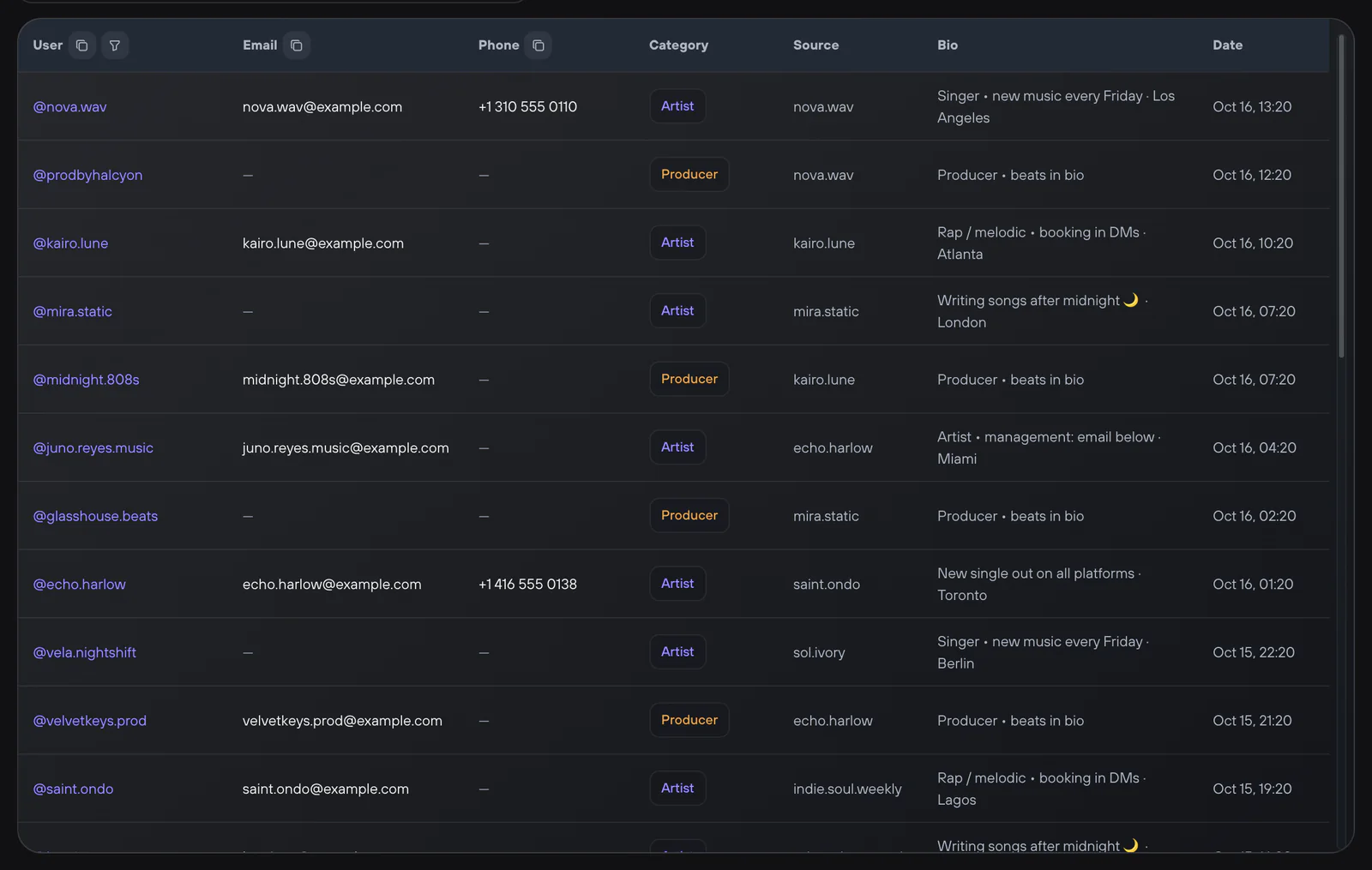
The table has these columns: User, Email, Phone, Category, Source, Bio and Date. You can search by username, email, phone, source and bio.
- Copy copies the table. You can choose: all profiles, with email, with phone, with email or phone, or with no contacts.
- You can copy one column. For example, profile links for your campaign. Click the copy button in the column header.
- Export saves the list as an Excel file (XLSX). If a copied table looks wrong after you paste it, use export.
- The More menu has Refresh and Clear. Clear deletes all the artists you found.
Move artists to the CRM
The CRM is your contact list. It is one table with every artist and deal.
- Open the CRM and click Import.
- Choose Parsing database.
- Tick all profiles or only the ones you need.
- Click Import.
Labels, notes, source and contacts move together with each profile. If you import again, Verse updates the contacts you already have. It does not make copies.
Now you can message the artists. Start a first campaign or send right from the CRM.
Read next
- Your first Instagram campaignHow to add artists to your list, write a few versions of your message, set the pause between messages and start your first Instagram DM campaign in Verse.
- Instagram profiles: sign-in, proxies and warm-upHow to add an Instagram account to Verse: create a profile, add a proxy, sign in with a password or cookies, warm up for 48 hours, or use Dolphin Anty.
- Shared contact list (CRM)How to keep all your artists in one Verse table: where you talk to them, what stage each one is at, what to do next, what they paid, plus import and export.
- Stats & LimitsHow to read the Stats & Limits screen: how many messages you sent today and this month, how many you can still send, and when the counters go back to zero.
Something here doesn't match what you see in the app? Tell us and we'll fix the article.
Support