How to find artists on Spotify
How to find artists on Spotify by name, playlist or similar artists, see their listeners, cities and Instagram, and add them to your Verse contact list.
- Updated
- October 17, 2026
- Reading time
- 5 min read
- Platforms
- macOSWindows
On this page
With this guide you will get a list of artists from Spotify. For each artist you will see their monthly listeners, the cities where people play them and their social links. You can add artists with an Instagram to your contact list and message them from Verse.
On Spotify, Verse only finds artists. Verse cannot send messages on Spotify. Messages go through Instagram, email and the other channels.
What you need first: an active Verse license on this computer. You do not need to connect your own Spotify account. By default, Verse searches through its own server.
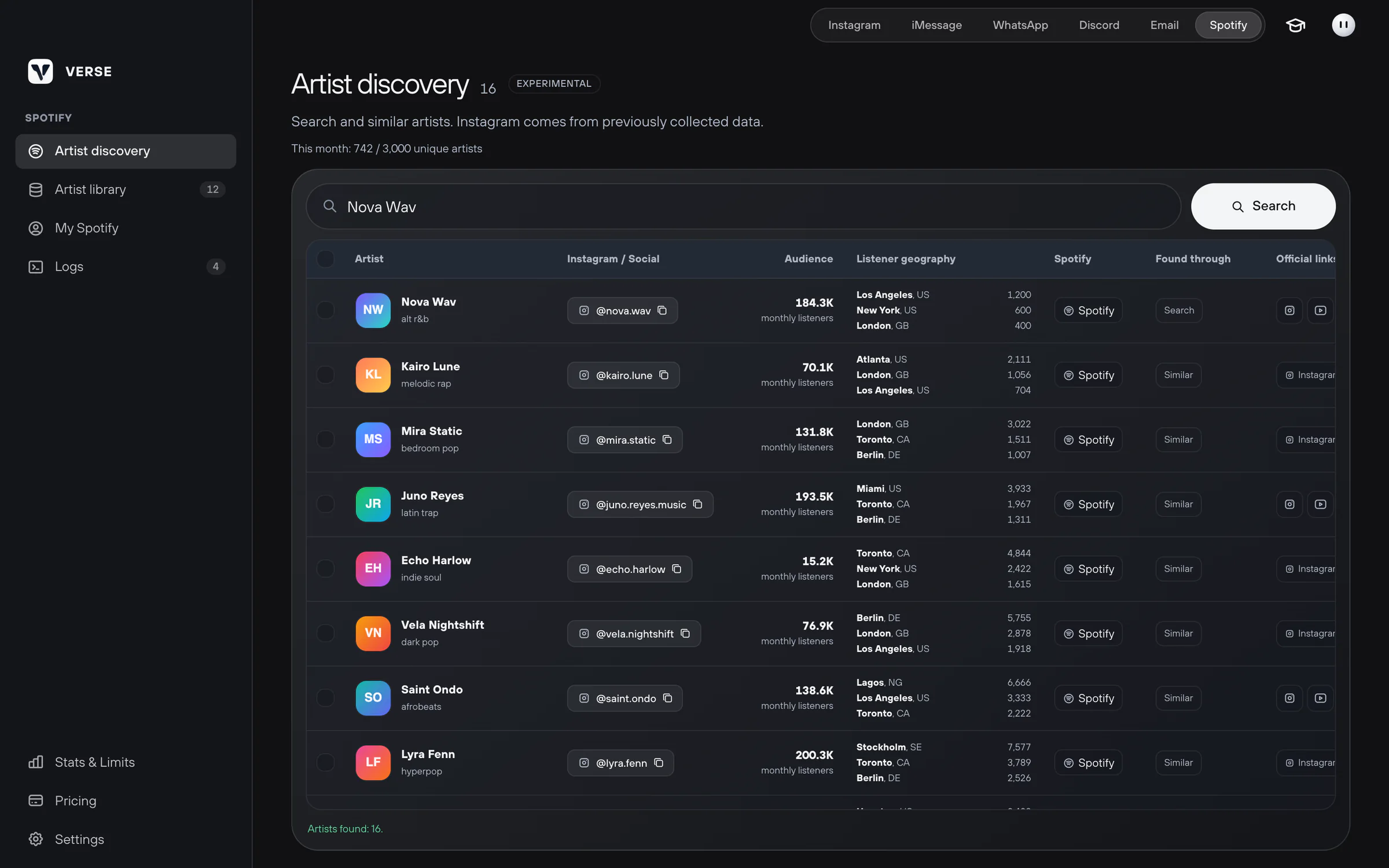
How to find artists
- Open the Spotify section in Verse.
- In the menu on the left, choose Artist discovery.
- Type an artist name, a genre or a theme. For example, "European rap".
- Click Search.
You can also paste a Spotify link instead of text:
- a playlist link: Verse collects the artists from its tracks;
- an artist link: Verse finds artists like this one.
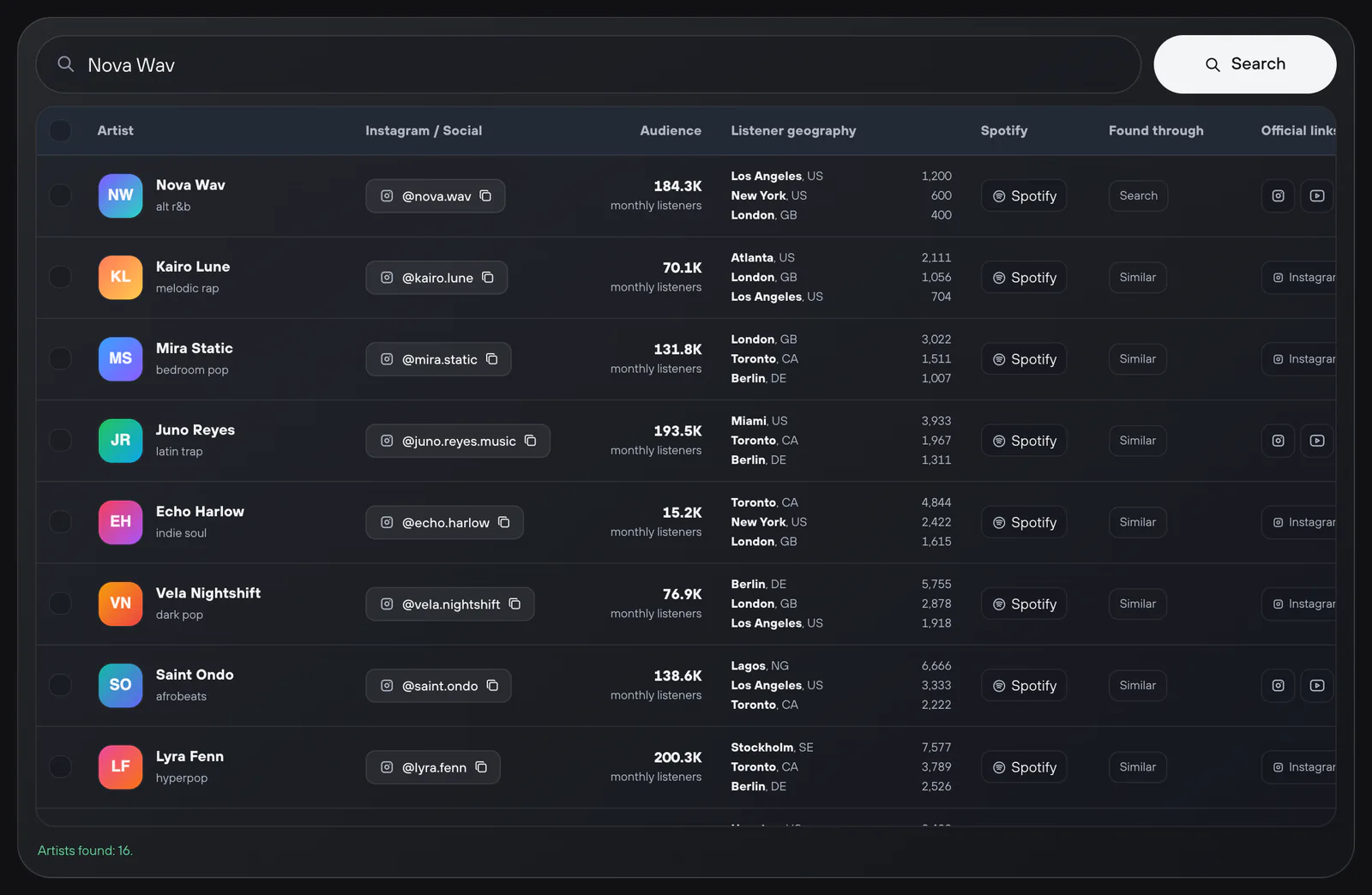
The table shows where each artist came from. For example, a search, a playlist or similar artists.
How to find similar artists
- Click Related / Radio on an artist's row. Verse finds similar artists through Spotify's own lists.
- To find artists like several artists at once, tick them. Then click Similar on the bar at the bottom. Verse uses up to 15 ticked artists.
How to see listeners, cities and socials
A search shows up to 100 artists. At first you only see basic details. To load listeners, cities and socials, click Collect data:
- on an artist's row: for one artist;
- on the bar at the bottom: for the ticked artists;
- above the table: for the whole list.
Verse loads:
- how many monthly listeners the artist has;
- the cities where people play them most;
- the links from their Spotify profile, including Instagram.
Artists with loaded data are saved in Artist library. Spotify does not always give everything. For example, some artists have no listener cities.
When there are many artists, Verse works through them one by one. You can Stop and later Resume. Data that is already loaded stays.
How to keep only the artists you need
The filters above the table hide the artists you do not need:
| Filter | Who stays in the list |
|---|---|
| Only with Instagram | Only artists who have an Instagram |
| Listener geography | Artists most played in the region you pick: CIS, Europe, North America, Latin America or Asia |
| Monthly listeners | Artists with the number of listeners you want: from "Micro indie (< 25K)" to "Superstars (> 2M)". You can also set a Custom range |
Filters only use loaded data. If a filter is on before you search, Verse loads data for the artists it finds. Artists with no city data do not pass the region filter.
What to do with the artists you found
Tick the artists you want. A bar with buttons appears at the bottom:
- Copy Instagram: copy their Instagram links. One artist's row has its own Copy Instagram button.
- To CRM: add them to your contact list (CRM). This is one table with every artist you message. Only artists with an Instagram are added. Verse tells you how many it skipped.
- Save: save them in Artist library.
- More actions: here you find Export CSV (download the list as a table) and Delete selected.
From the contact list you can DM an artist or start a mass message. To get started, read Your first Instagram campaign.
Artist library
Artist library keeps every saved artist with their socials and listener cities. You can search by name or genre. It has the same filters as the search.
The library is stored on your computer. You can use it even when your monthly limit is used up.
How to connect your own Spotify
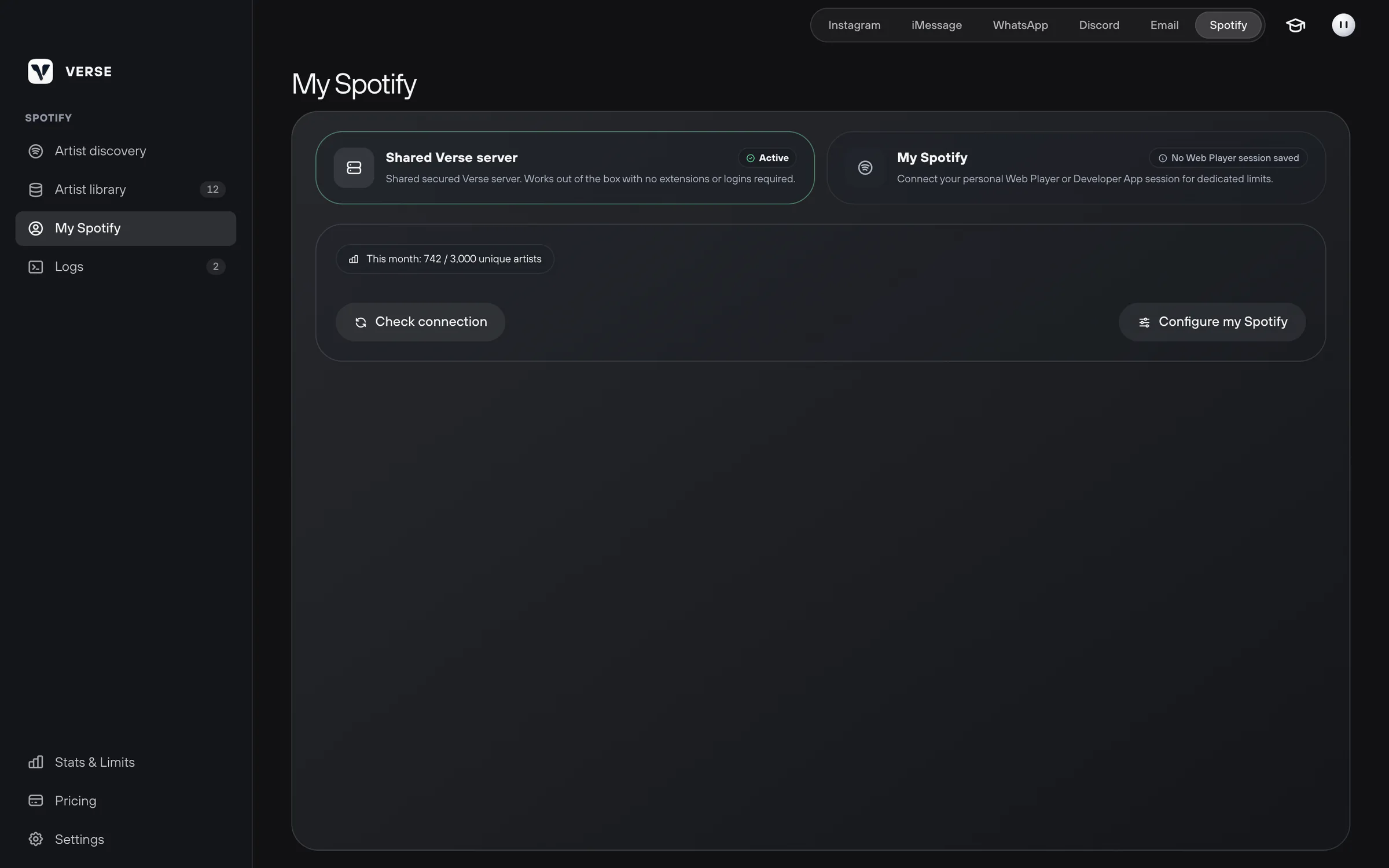
By default Verse uses the Shared Verse server. This is a server run by Verse. It needs no extensions and no Spotify login.
You can also search through your own Spotify account. Open My Spotify and click Configure my Spotify. There are two ways: Web Player and Web Player + Developer App.
- Click Download extension.
- Unzip the downloaded ZIP file.
- In Chrome, open the page
chrome://extensions. - Turn on Developer mode and load the unzipped folder.
- Open the website open.spotify.com.
- Click the Verse extension and choose "Save session to file". The extension saves a file with your Spotify login.
- In Verse, click Import session and pick this JSON file. You can delete the file after that.
- If you chose the Developer App way, click Open Dashboard. Create a Spotify app there.
- Copy its Client ID and Client Secret into Verse. These are the access keys for your Spotify app.
- Click Save connection.
- Click Check connection.
Your Spotify login and keys are stored encrypted on your computer. To go back to the shared server, click Switch to Verse server.
How many artists you can find per month
The limit is how many different artists Verse can find for you in a calendar month. If the same artist shows up again that month, it does not count again.
The "This month: … unique artists" counter is at the top of the screen. It goes back to zero on the first day of the month.
| Plan | Different artists per month |
|---|---|
| Trial | 100 |
| Individual | 300 |
| Basic | 1,000 |
| Premium | 5,000 |
| VIP | 10,000 |
Sometimes Spotify or the Verse server asks Verse to wait. Then Verse shows when you can search again.
Read next
- Shared contact list (CRM)How to keep all your artists in one Verse table: where you talk to them, what stage each one is at, what to do next, what they paid, plus import and export.
- Your first Instagram campaignHow to add artists to your list, write a few versions of your message, set the pause between messages and start your first Instagram DM campaign in Verse.
- Find artists on Instagram (ReachVerse)How Verse finds artists on Instagram for you: where to look, who to save, how to skip what it already checked, how to export to Excel or move them to the CRM.
- Plans and limitsHow Verse plans differ: price, number of Instagram accounts, how many messages you can send per day and per month in each channel, and which plan to choose.
Something here doesn't match what you see in the app? Tell us and we'll fix the article.
Support